Automatic reply in absence
Are you going on vacation or out of the office and won't be available on email? Do you want to let others know through an automatic response? Set up an automatic response for incoming emails.
TIP: If you are not available, you can temporarily forward your incoming emails to a colleague and inform the sender through an automatic response.
User Guide
1. Logging into the Administration
Log in to the hosting services administration at admin.hukot.net using your email account and password.
2. Adding an Automatic Response
In the email account settings, check the option Enable Automatic Response.
Fill in the newly displayed text fields and save using the Save button.
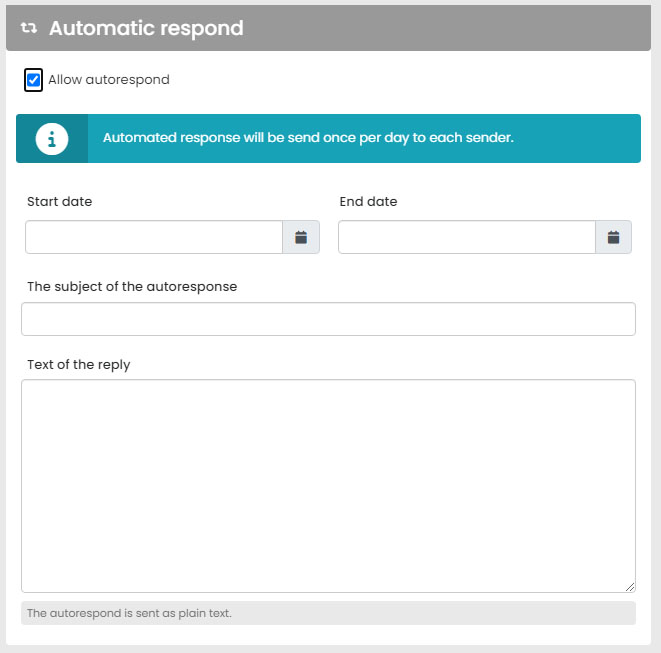
If someone sends an email to your email account now, they will receive your automatic response within a few minutes.
Done. (^w^)
Domain Administrator Guide
1. Logging into the Administration
Log in to the hosting services administration at admin.hukot.net using your username and password.
2. Email Accounts
In the tabs, select "Email Accounts".
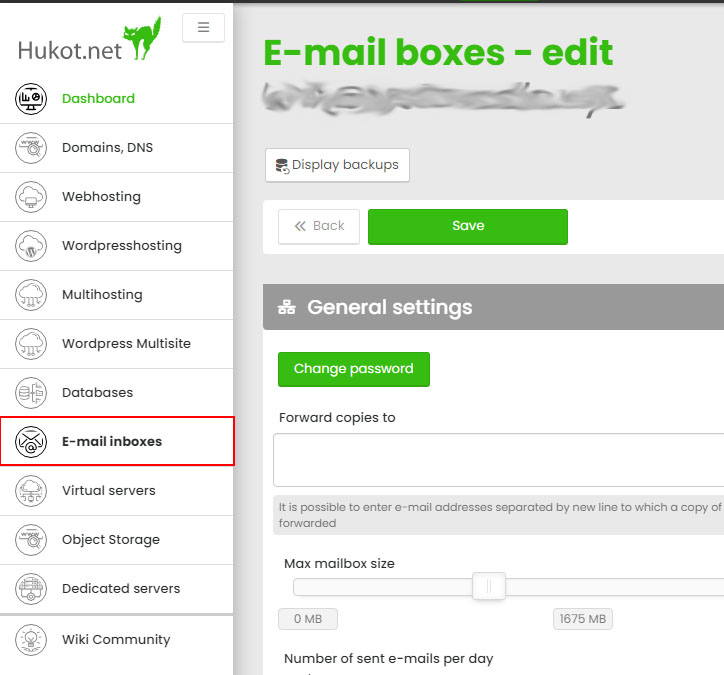
3. Adding an Automatic Response
In the overview, you will see the available email accounts. Click on the edit button for the chosen email account.
In the email account settings, check the option Enable Automatic Response.
Fill in the newly displayed text fields and save using the Save button.
If you now send an email to the specified email address, our automatic response will arrive within a few minutes.
Done. (^w^)