# How to connect to Remote Desktop - Windows server 2016
Source: https://www.hukot.net/community/en/tutorials/how-to-enable-and-access-remote-desktop-computer-with-windows-server-2016
Updated: 2026-11-25
## ENABLING REMOTE ACCESS
**1.** Open **computer properties.**

**2.** Open **advanced system settings.**

**3.** Open tab "**Remote**" and enable **"Allow remote connections to this computer".**

> [!DANGER]
> The incoming connections **may be blocked by Windows Firewall** (it often happens when you're connected over "Public Network")
## CONNECTING
**1.** Open application **"Remote Desktop Connection"** (mstsc).

**2.** Enter **IPv4 address** of the server we want to connect to.

**3.** Enter **login credentials** for the server we are connecting to.

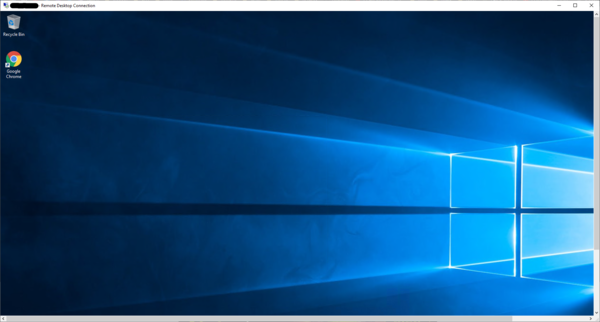
4. You should now be **successfully connected** to the server!