How to set up a mailbox in the Thunderbird mail client - IMA
In order to use the Thunderbird client, we will first need to create a new account to add a mailbox.
If you haven't downloaded the client yet, you can download Thunderbird from the official website.
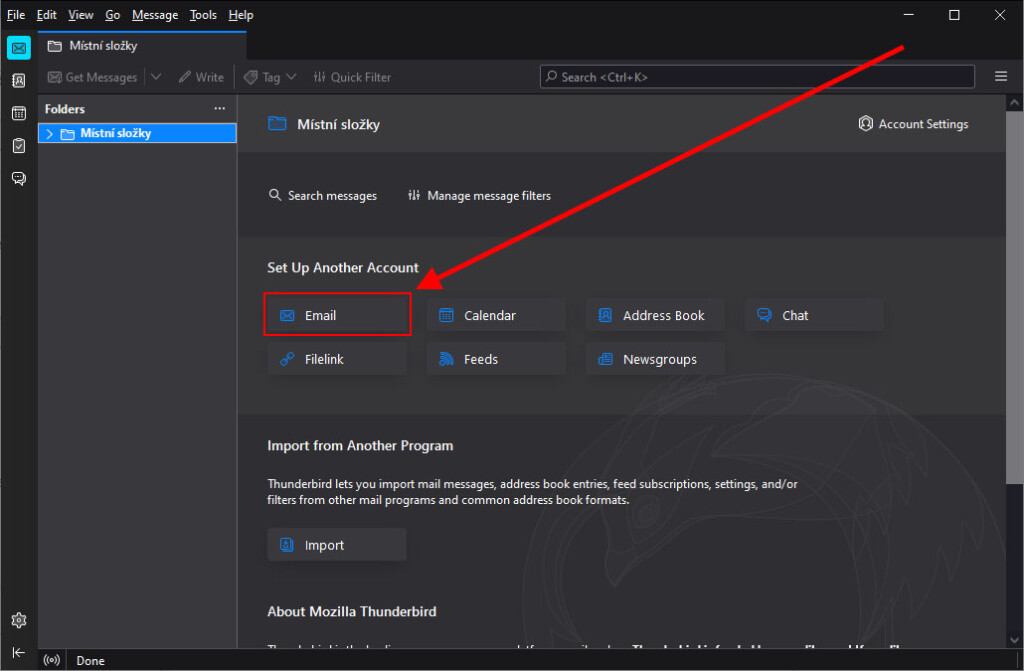
We see the option "Create a new account" at which we select "Email".
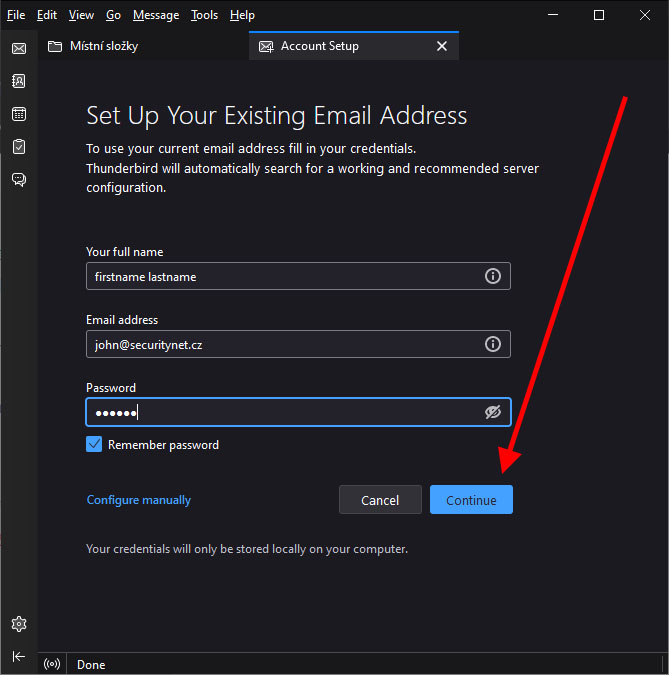
We see a box for your name,email and password.
We fill in the "Your Name" field the way we want to be seen when we send any email. Example "jan.novak@securitynet.cz Jan Novák".
We fill in the "Email address" field with the email address you were given when you received the service. Example "jan.novak@securitynet.cz"
Fill in the "Password" field in the same way as the email address field, i.e. the password you received from us.
Once completed, click on the "Continue" button.
In the next step we can press "Configure manually" or wait for a while.
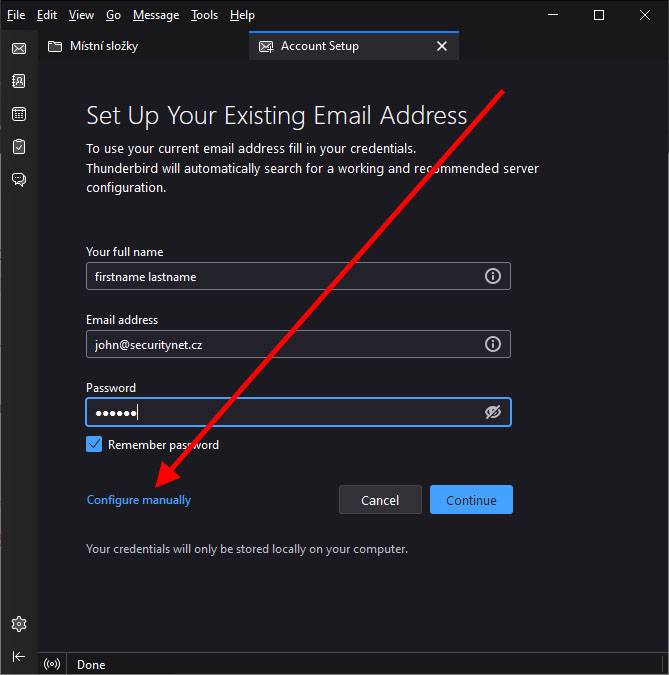
Our window will expand a bit with a few more details.
These details will provide us with a connection to the email server.
The server name will be "mail.hukot.net" in both cases.
We will set the ports to 993 for the incoming server and 465 for the outgoing server.
For the SSL field, select the "SSL/TLS" option.
The username will be "full email address" for both incoming and outgoing mail.
Then click on the "Re-test" option.
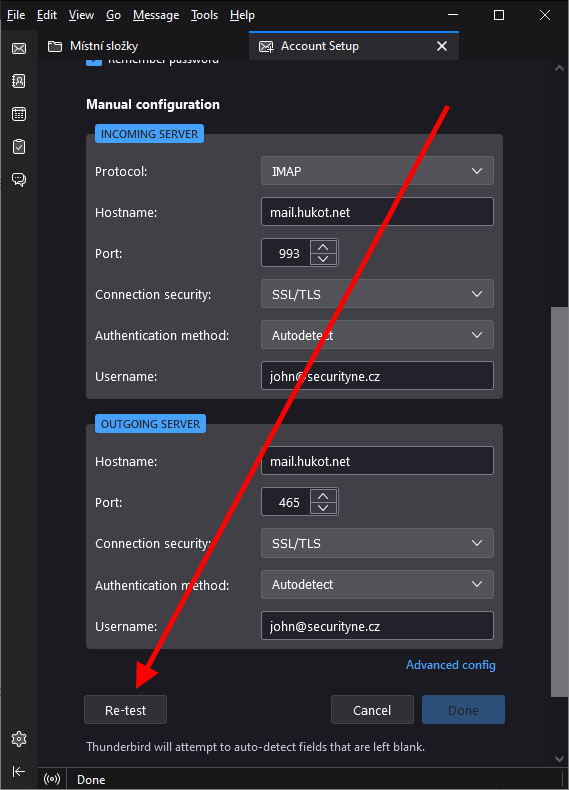
If no error occurs then the "Done" option should light up. We click on the done button and we are done. Now you can send emails whenever you need to.