How to transfer emails from Gmail
For email export, we will use the Google Takeout tool.
Email Export.
Using your Google account, log in to the Google Takeout tool.
Google Takeout

Before creating the archive, click on the Deselect All button.
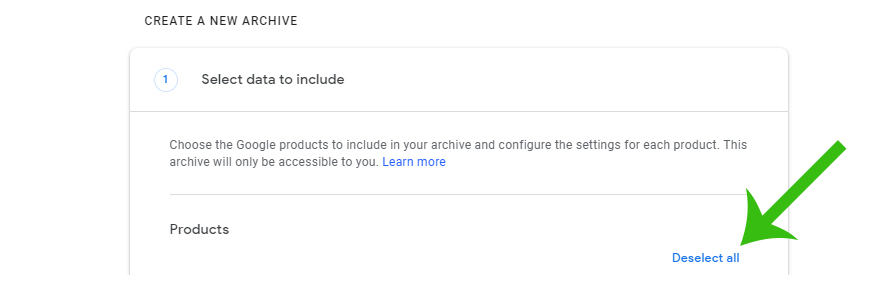
In the following list, find the Mail item. Check the item and click on the Next Step button.
If you click on the All Email Data button, you can customize which labels you want to export.

Choose how you want to receive the exported data. The offered options are:
- Send a download link to your email
- Add to Google Drive
- Add to Dropbox
- Add to OneDrive
- Add to Box
Next, select the archive type and the maximum size of a single archive.
If the archive exceeds the selected maximum size, it will be divided into multiple files.
Click on the Create Archive button.
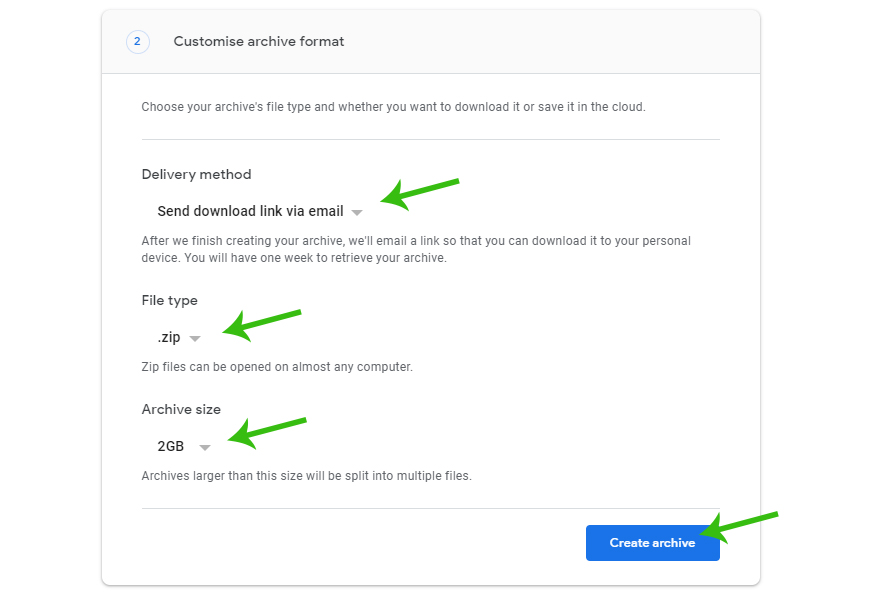
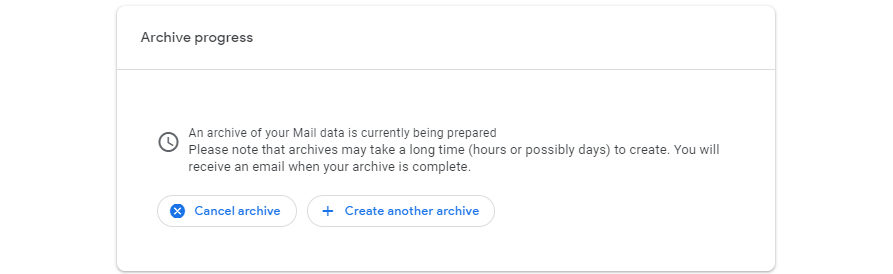
Now the archive creation process will begin, which may take several hours or even days.
Archive Download
Once you receive an email, click on the sent link. A table will appear with the created archive.
Download the archive using the Download button.

Unzip the downloaded archive and look for a file with the .mbox extension. This file will be imported.
Email Import
Using your email address and password, log in to webmail.hukot.net. In the web interface, click on the Settings button in the lower left corner and select the Import Messages action.
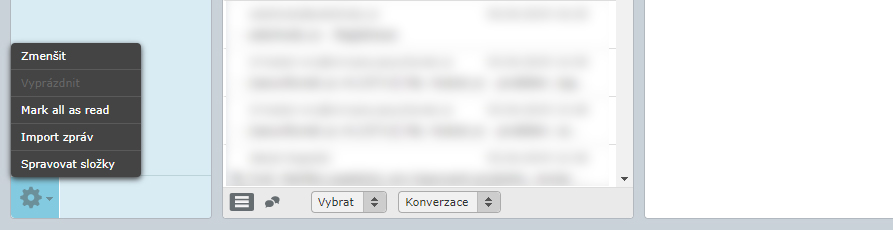
In the opened window, select a file with the .mbox extension and start the import process.