How to connect to an FTP server with FileZilla
You have web hosting from hukot.net and enjoy using FileZilla ? Below you will find a quick guide to setting your FTP password and configuring the FTP client FileZilla
1. We'll sign in to the administration
Log in to admin.hukot.net .
Login was emailed to you when you registered to host.
.png)
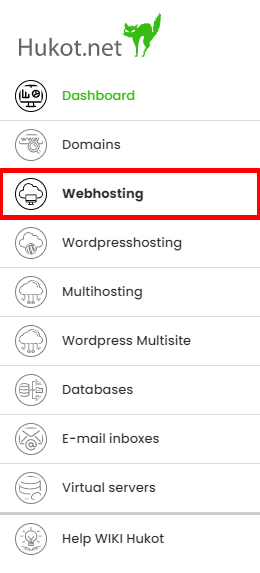
After logging in, we see the navigation. Select "Webhosting".
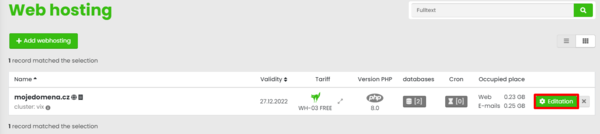
Here we see an overview of our webhostings. We will choose our webhosting to join and click on button "editation".
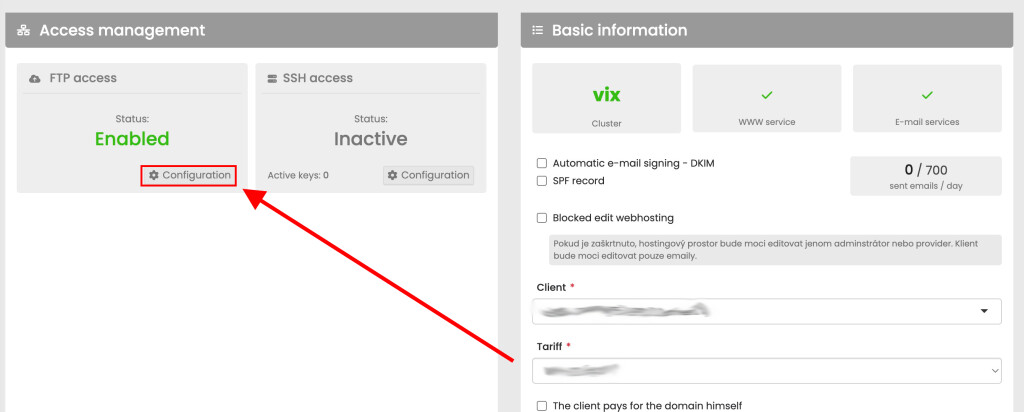
We're interested in FTP access configuration
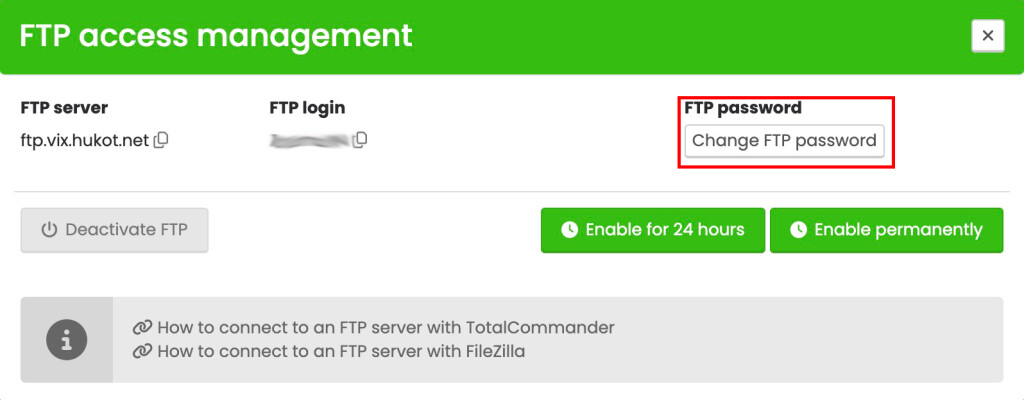
We can also generate a random password here, or we can enter a custom password. After changing password, save changes by enabling FTP access.
2. We'll open an FTP client
Open FileZilla - Client. We see a place manager button above the Host text. Open the Places Manager and create a new place .
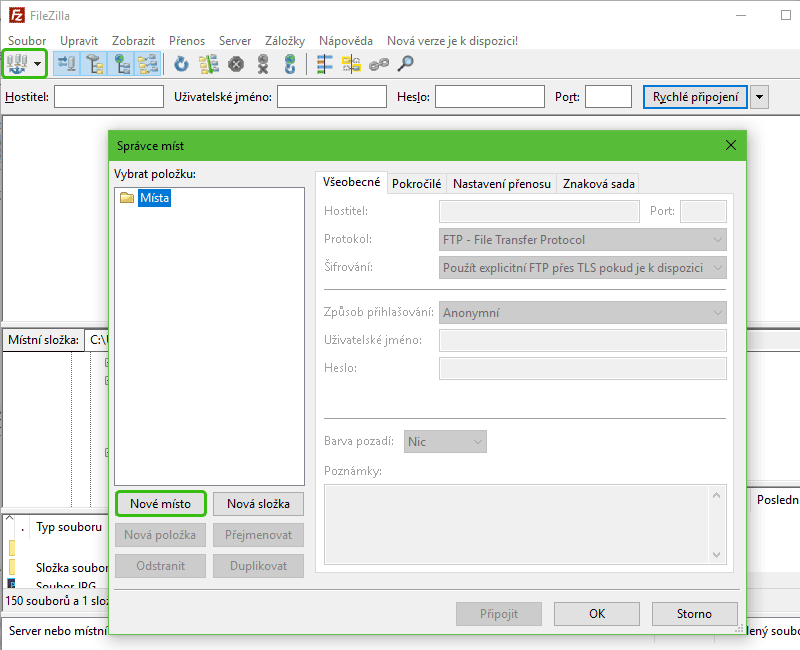
3. Fill out the login information
Host is ftp.eam.hukot.net or ftp.vix.hukot.net - we choose what we've seen in domain administration.
- Change the login method to Ask for a password.
- Username is your domain name
- Password is your custom or generated password
.png)
We will confirm and continue. Check Always trust this certificate in future sessions and click OK
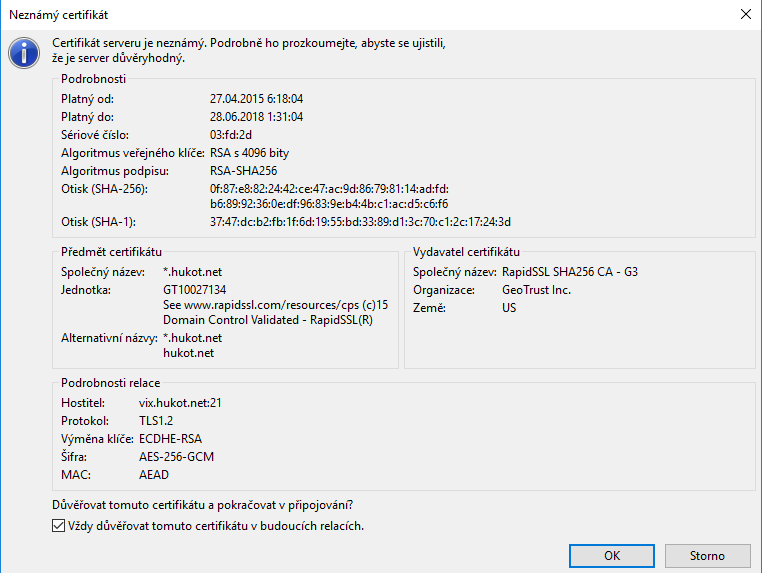
We are now connected to the FTP server and we can start uploading files. Upload what should be visible to the web server to the www folder. So, for example, if you upload a WordPress , copy the files of this CMS just to the www folder.
Done (^.^)