Connecting a network drive using WebDav in Windows 10
Open This PC.
In the upper left, click on the Computer tab and connect a network drive.
In the new window, choose the option Connect to a Web site that you can use to store your documents and pictures.
Connecting a network drive

Continue with the Next button.
Choose the only available option, Select a custom network location.
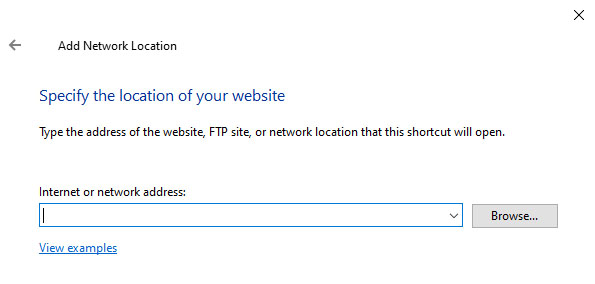
In the Internet or network address: field, enter the URL (https://asterix.securitynet.cz/dav/xxx.xx/) that you received from us.
Add network location
Enter the name for how this network connection will be displayed and confirm.
Now, in the left panel under This PC, there is a folder with your name. Click on the folder and log in using the provided credentials.
You can then upload files to the Root folder.