How to add an e-mail account in Outlook 2019 - IMAP
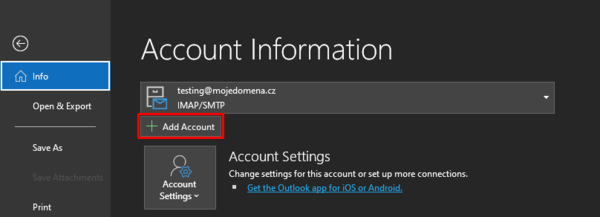
Open Outlook and click on button "File", continue by pressing "Info".
Click on "Add account".
File > Info > Add Account
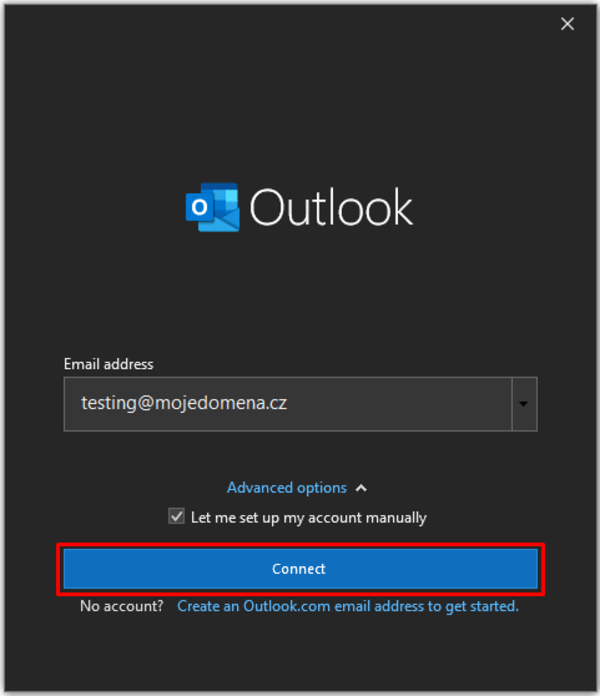
Enter your e-mail address, e. g.: testing@mojedomena.cz, click on "Advanced options" and check "Let me set up my account manually", click on "Connect".
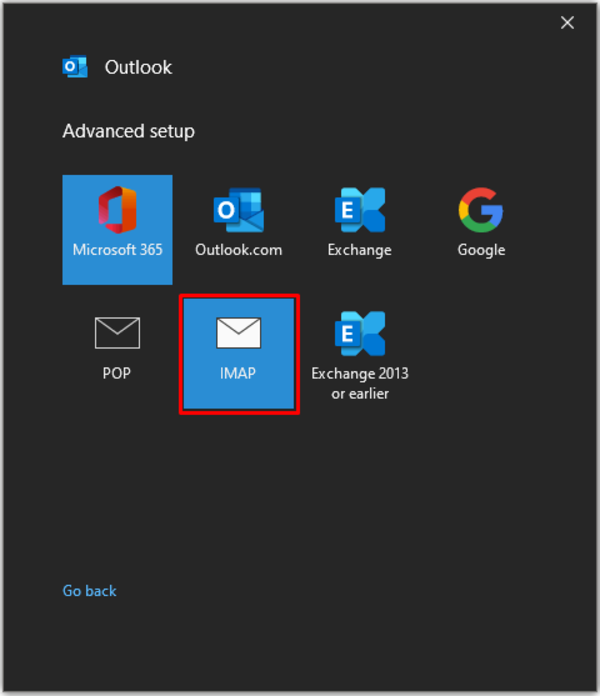
Select IMAP in the advanced setup menu.
Incoming and outgoing mail server - mail.hukot.net
Encryption method - SSL/TLS
Incoming mail port - 993
Outgoing mail port - 465
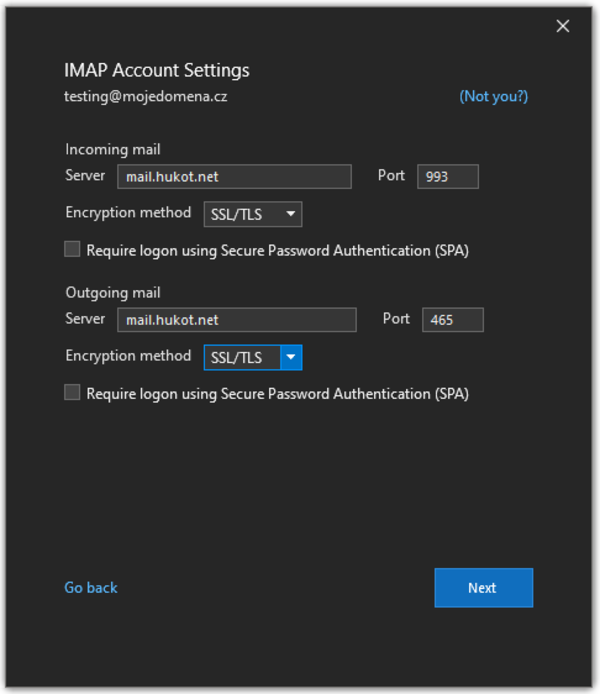
Click on "Next", you'll be prompted to enter your password. After entering your password, you should be successfully logged in!
That's all :)