How to expand a disk in Windows
You are running low on disk space and you know you have free resources to expand your disk or you have purchased a VPS at Hukot.net and have your disk capacity increased?
The following steps determine how to expand the so-called partition layout for Windows 10, for Windows 8.1, Windows 8, Windows 7, Windows Vista, and Windows XP.
1. Open Disk Management
Right-click the Start menu and select Disk Management.

2. Select a partition
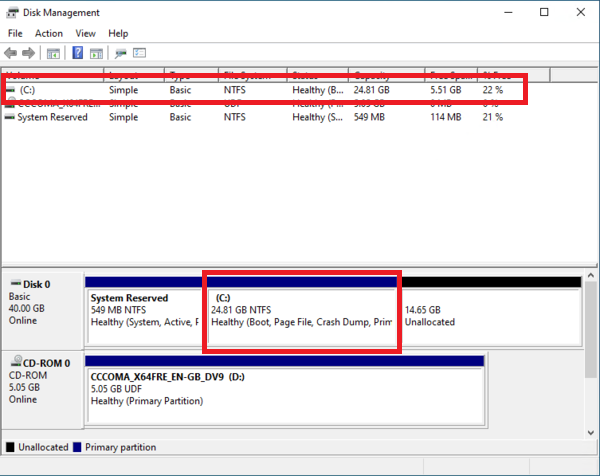
After opening Disk Manager, select the partition you want to change and right-click on the partition to open the menu.
Note: Select the section followed by the section named Unllocated.
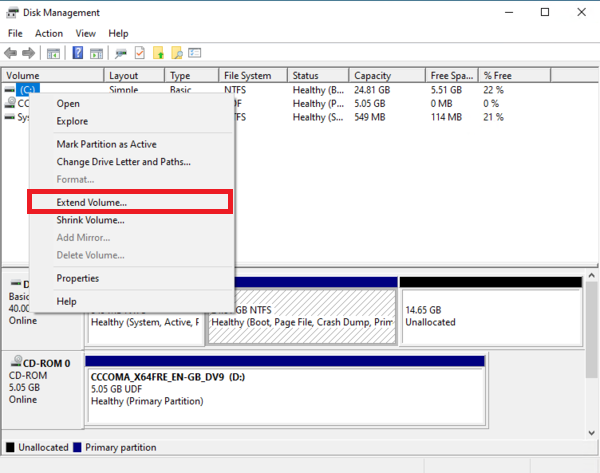
From the menu that opens, select Extend volume...
3. Partition expansion
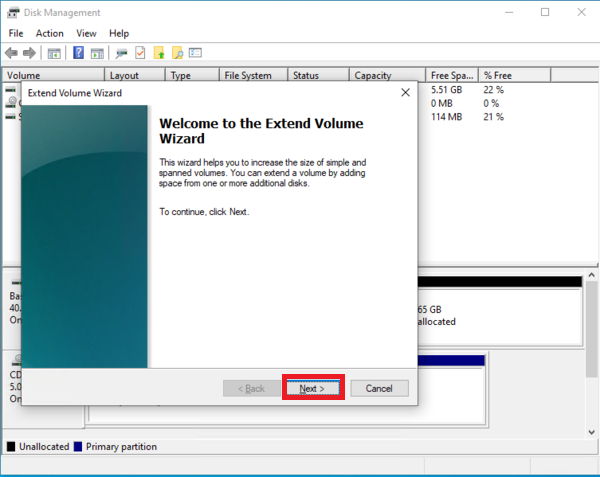
The Extend Volume Wizard will appear, click Next to continue.
Here we can choose how much MB we want to enlarge the selected partition.
Note If we don't change the number, the section will expand to the maximum possible size. Click Next.
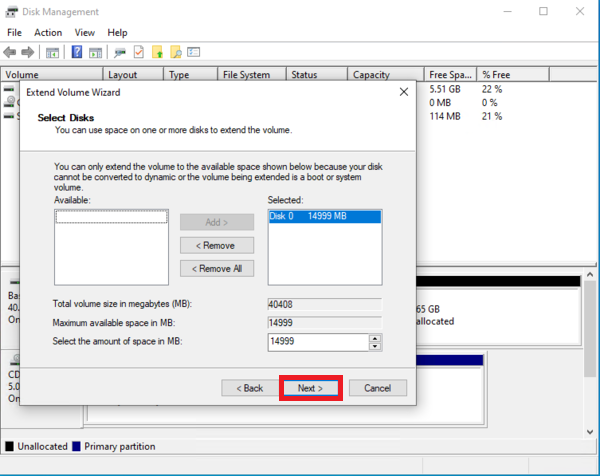
Then you just have to confirm the partition extension with the button Next, and the upgrade of partition layout is complete.