How to set up an email inbox in the Mail client in Windows 10 - POP3
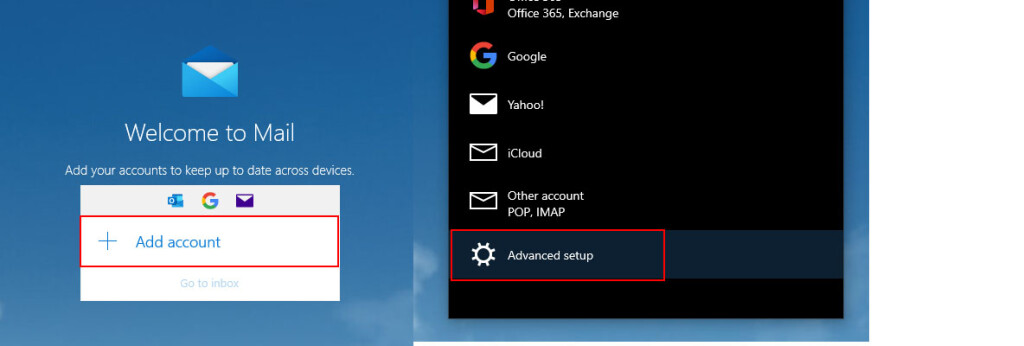
Launch the Mail application in Windows 10, open settings, and select Add Account.
In the displayed menu, choose Advanced Setup.
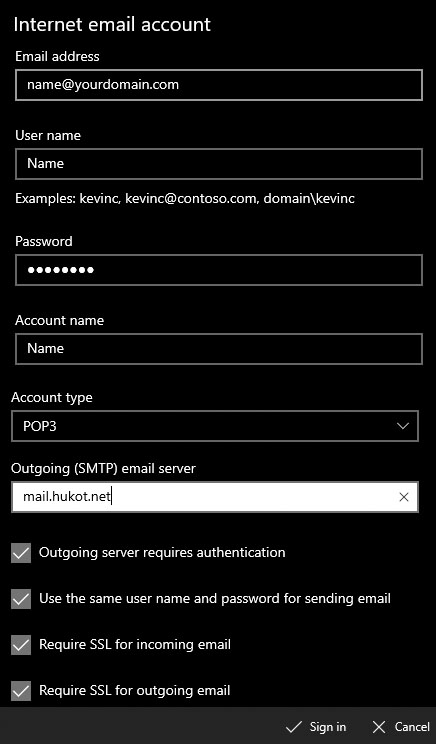
Fill in the email account settings as follows:
Email Address: Your email address
User Name: Your email address
Password: Password for your email address
Account Name: As per your choice
Send your messages using this name: As per your choice
Incoming email server: mail.hukot.net
Account Type: POP3
Outgoing email server: mail.hukot.net
Check all options and click the Sign In button.
Done. :)