How to set up e-mail in mail client Thunderbird - POP3
First, we need to set up our existing e-mail address.
You can download Thunderbird from their official site if you don't have it yet.
Under "Choose What to Set Up" choose "E-mail".
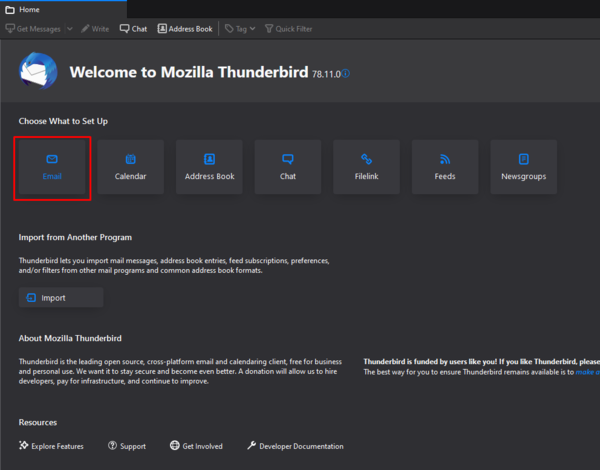
Now we can use our credentials to log into our e-mail.
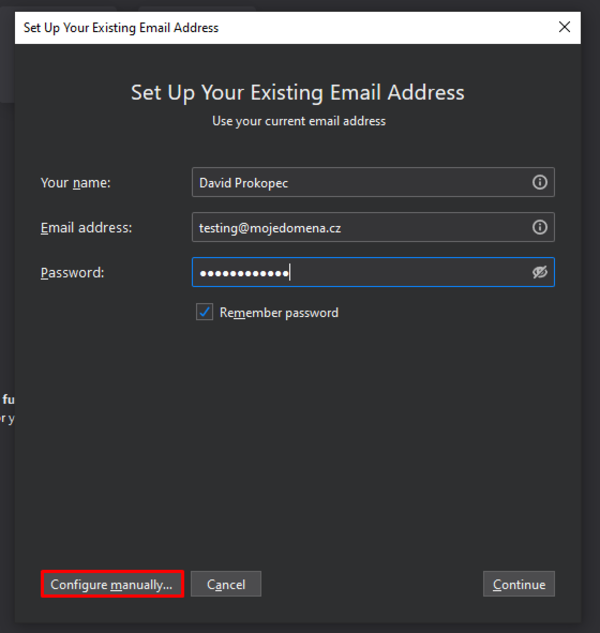
"Your name" - name, which will display when sending any e-mail. E. g.: "john.mulberry@securitynet.cz John Mulberry".
"Email address" - your email address you wanna log into. E. g.: "john.mulberry@securitynet.cz"
"Password" - password to the email you wanna log into.
Now click on "Configure manually...".
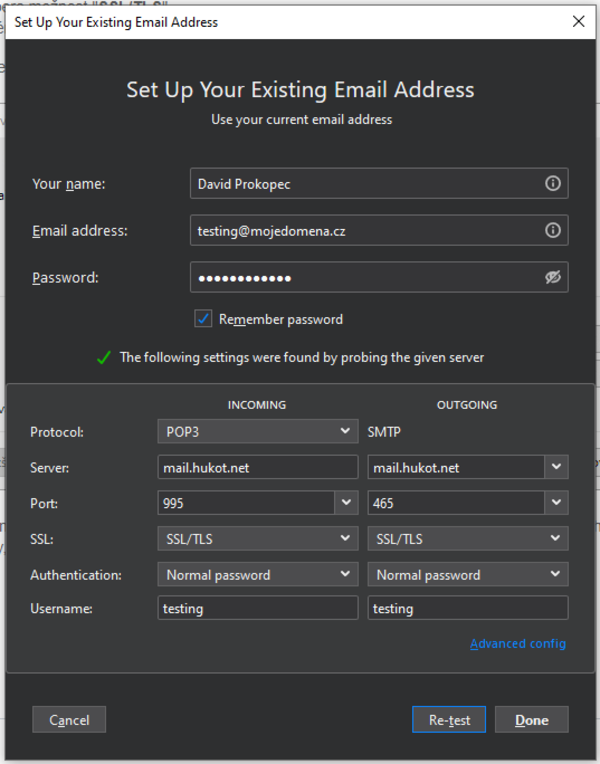
The window will expand with a few more options.
These data should ensure our connection to the e-mail server.
Protocol - POP3
Server - mail.hukot.net in both cases
Incoming Port - 995
Outgoing Port - 465
SSL - SSL/TLS
Username - your e-mail address
Click on "Re-test".
We should be able to click on "Done" if no error occures. And we're done! We should be able to recieve and send e-mails from wherever we ever want!