Export and import MySQL database
Are you moving your websites, web application, or creating a backup and need to create a copy of the original database? Exporting or copying data from one database to another can be done elegantly. Let's show you how to export and import a database using the web interfaces phpMyAdmin or Adminer.
In the web interface phpMyAdmin or Adminer, log in to the original database.
Note: If you don't know the login credentials, you can find them in the configuration of your application.
phpMyAdmin / Adminer
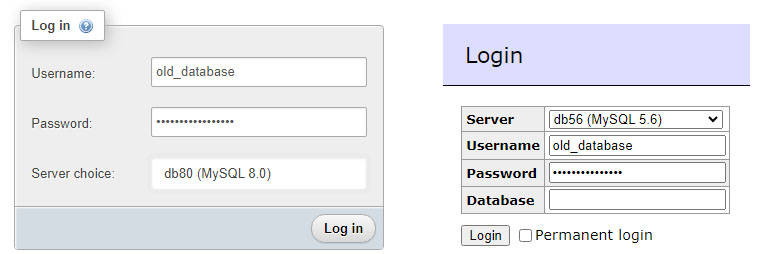
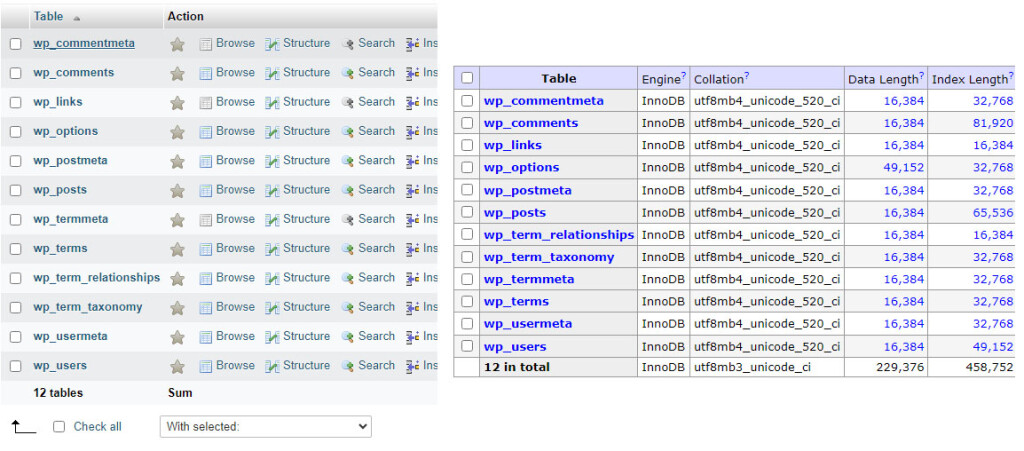
Select the database, and you will see that it contains some tables and data.
phpMyAdmin / Adminer
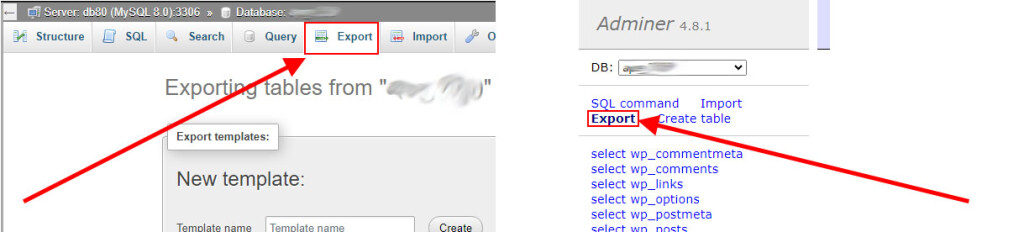
In the main menu, choose the export option.
phpMyAdmin / Adminer
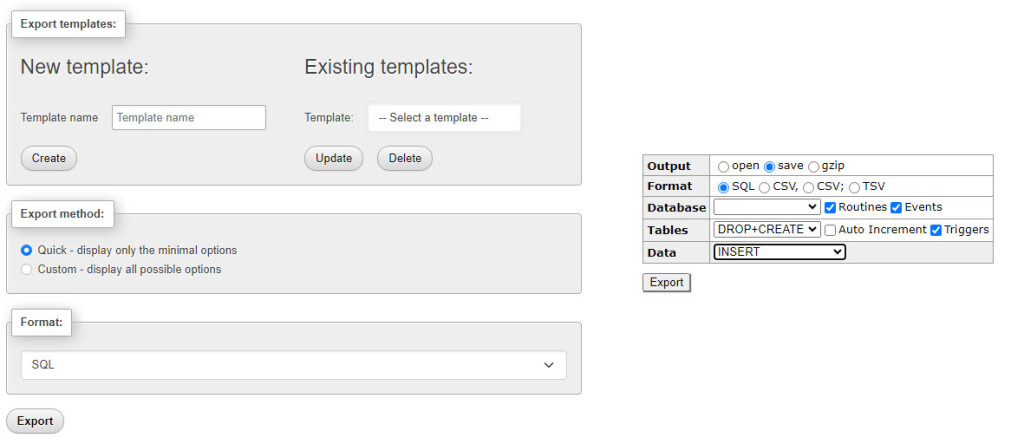
phpMyAdmin
For exporting the entire table, leave the export method as quick. If you want to export only a part of the database, such as only the structure or data, select the custom option, adjust the settings, and click the Go button.
Adminer
Choose the output type. If you want the generated code to be displayed directly in the browser, leave the open option. If you want to save the generated code to a file, select the save option. For this guide, we'll use the save option. Select which tables and data you want to export and click the export button.
Note: When selecting tables, it's better to leave the DROP+CREATE method to avoid possible duplicate data during the subsequent import.
phpMyAdmin / Adminer
A file with the name database-name.sql will be downloaded.
Importing a MySQL database via SSH is described here.
Import
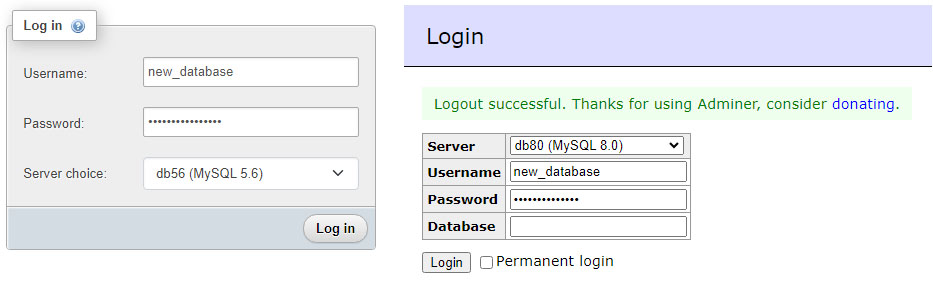
Log out of the original database and log in to the database where you want to move the data.
phpMyAdmin / Adminer
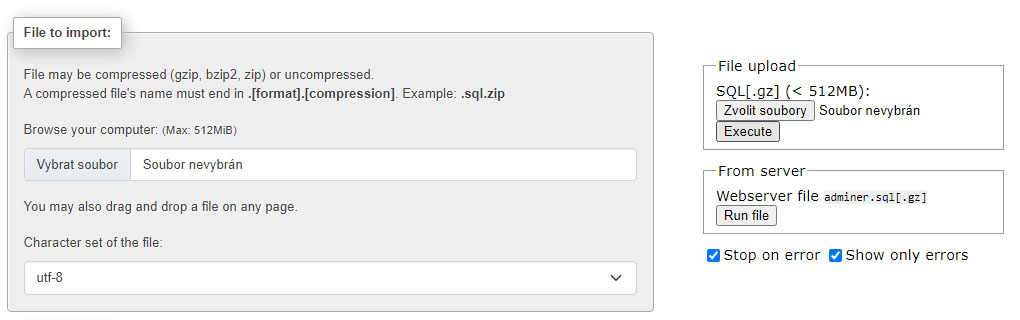
Select the database and click the Import button.
A field for uploading a file will appear. Choose the file database-name.sql and click the Go button.
phpMyAdmin / Adminer
If the import is successful, you will see the message #number# queries executed successfully.