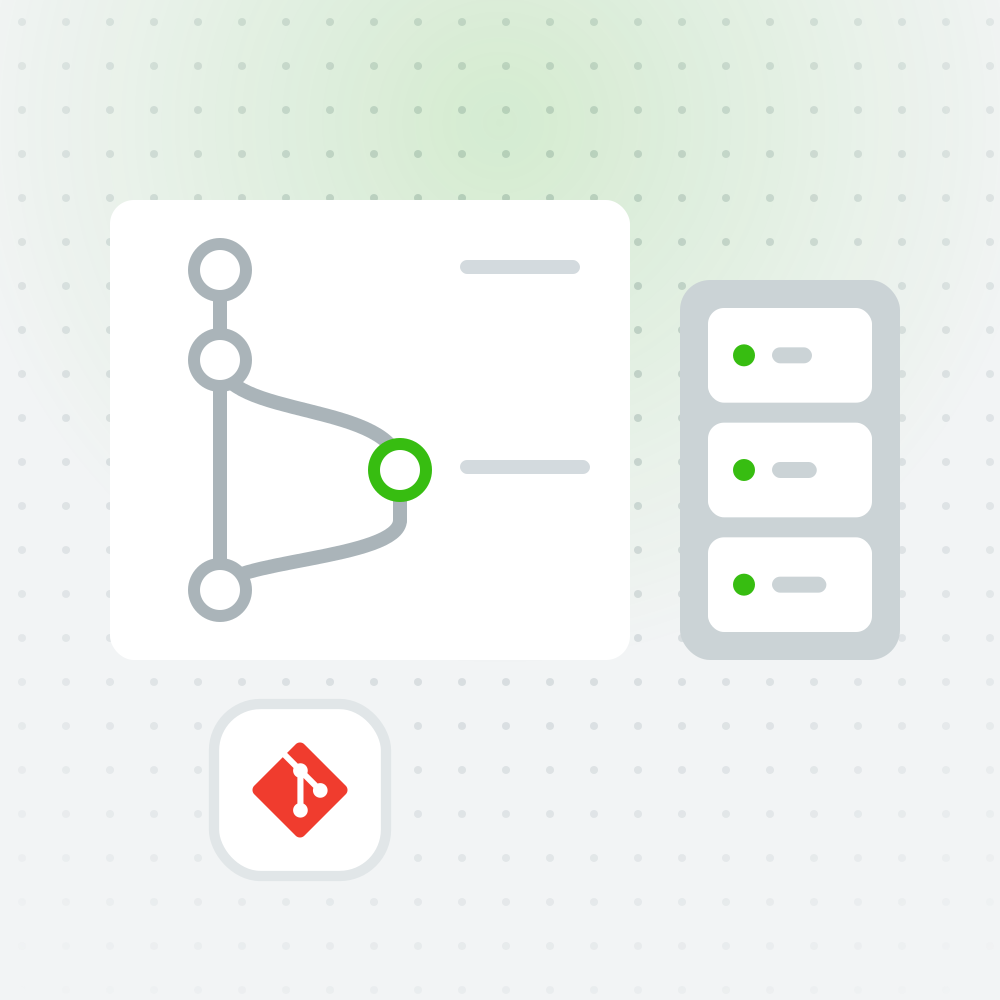
Git is a distributed version control system. The program allows for nonlinear project development and efficiently handles a large amount of data by storing it on a local server.
Installing Git #
Using apt-get makes installation quick and easy.
sudo apt-get install git-core
Once the installation is complete, you have Git installed and ready to use.
Configuring Git #
Before using Git, we need to set a name and email.
You can use the following commands:
git config --global user.name "newUser"
git config --global user.email newUser@domain.com
You can find all configurations using:
git config --list
Automated Deployment with Git #
Our scenario:
Server directory: /var/www/mydomain.com
Server repository: /var/git-repo/site.git
Creating a Repository
Log in to your VPS and enter the following commands:
cd /var
mkdir git-repo && cd git-repo
mkdir site.git && cd site.git
git init --bare
--bare means that our directory will not contain any source files, only version control.
Git Hooks
A Git repository has a "hooks" folder for events. This folder contains simple files for actions triggered by specific events, performing user-defined actions.
Git documentation defines three events: "pre-receive," "post-receive," and "update."
Pre-receive is executed as soon as the server receives the "push" command.
Update is similar but executed separately for each "branch."
Post-receive is executed after "push" is completed and is the one we are interested in.
In our repository, if you type:
ls
You will see several files and folders, including the "hooks" folder.
Navigate to the "hooks" folder and create a "post-receive" file.
cd hooks && touch post-receive
This will create an empty file. Open the file in a text editor and add the following text.
nano post-receive
#!/bin/sh
git --work-tree=/var/www/mydomain.com --git-dir=/var/git-repo/site.git checkout -f
The target directory /var/www/mydomain.com must exist and the user you connect with over SSH must be able to write to it.
Save and close the file.
To run our file, we need to set permissions.
chmod +x post-receive
Local Setup
On your local device, create a repository.
You can choose any path and name for the repository.
cd /development/myProjects
mkdir git-test && cd git-test
git init
Next, you need to set the remote path to your repository. Name this remote path as "project."
git remote add project ssh://mydomain.com@mydomain.com/var/git-repo/site.git
If you already have a project in progress, you can let Git upload files.
git add .
git commit -m "Uploading files"
Remember, the "." (dot) after "git add" means adding all files. For "git commit," we use the -m parameter for the message.
To upload to the server, use our alias "project."
git push project master
Done.