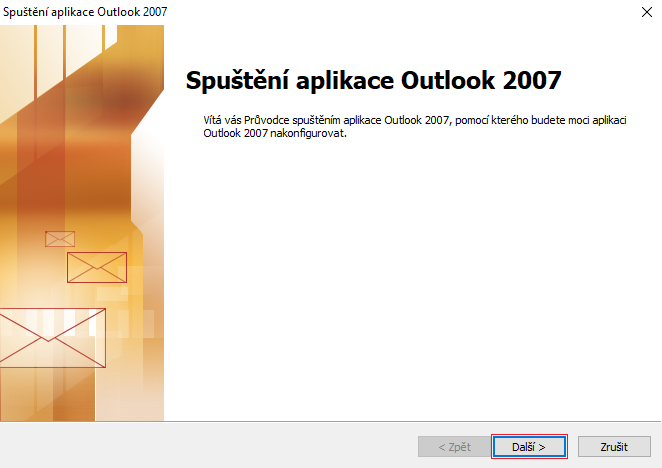
When you start Outlook, you will be greeted by the Wizard. Click on "next".
Leave the "Yes" option checked and put "next".

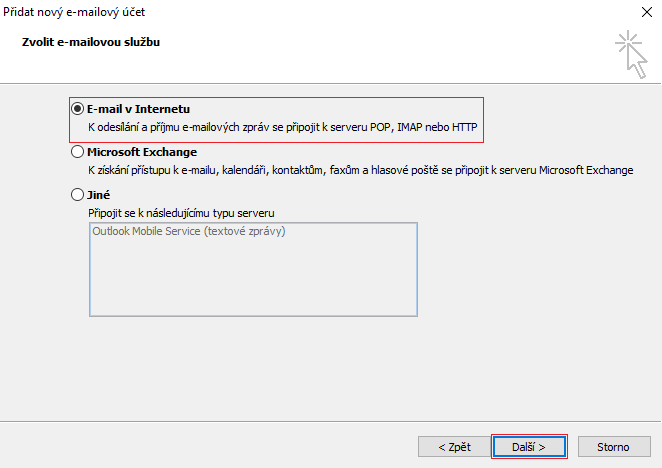
We leave the option "Email on the Internet" and continue on.
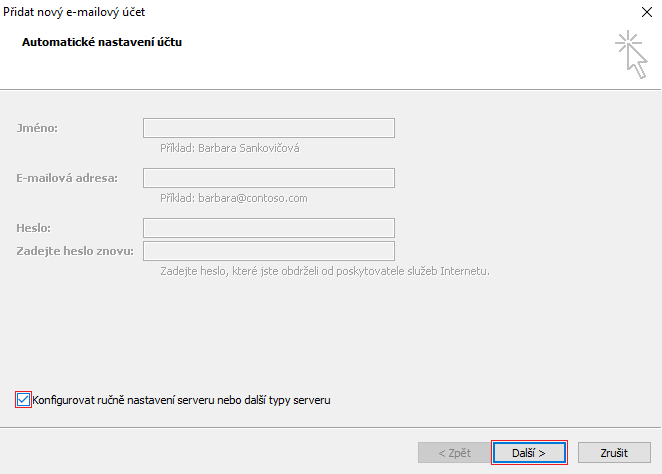
We check the option to Manually configure server settings or other server types and continue.
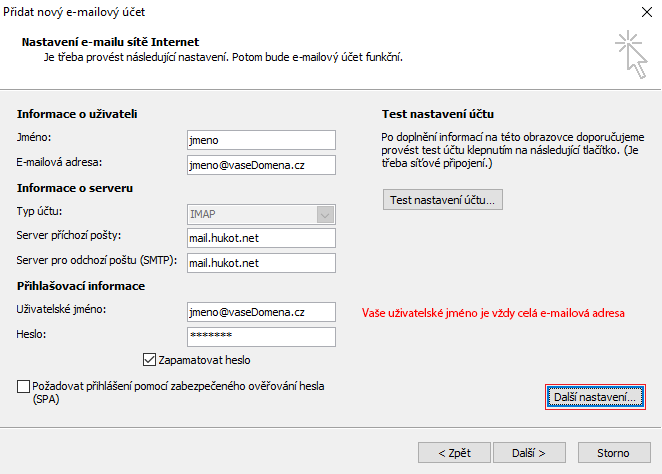
Fill in the individual details as shown in the template: account type IMAP, incoming and outgoing mail server mail.hukot.net, and your full email address as the user name.
After filling in the details, click on the Next Settings button.
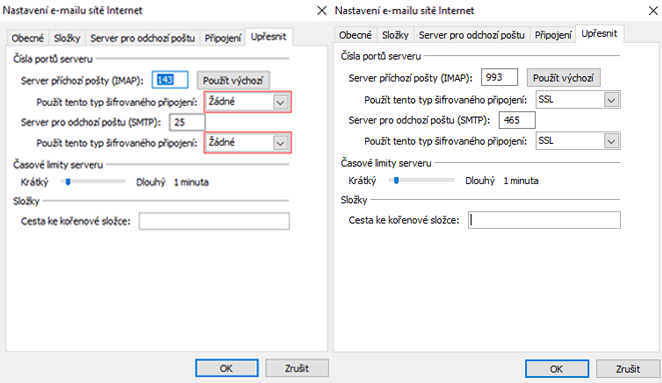
Advanced tab.
For the drop-down lists, select the SSL option.
Set the ports to 993 for the incoming mail server and 465 for the outgoing mail server.
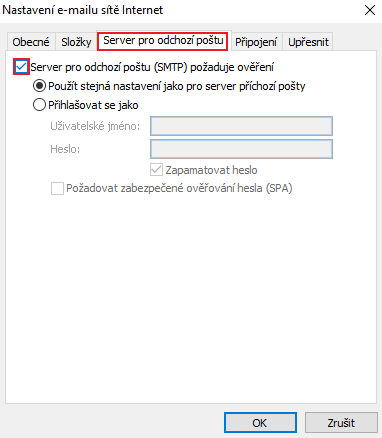
Tab Outgoing Mail Server and check the SMTP Outgoing Mail Server Requires Authentication option.
Confirm with OK and continue.
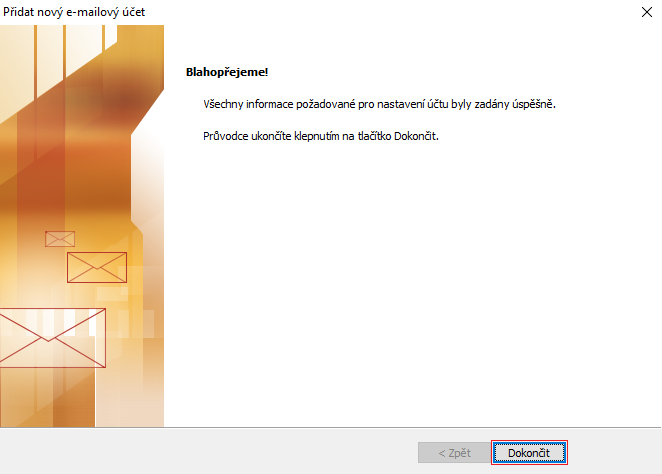
Done.