How to restore web hosting from backup?
Within the administration, the user can restore the webhosting directly from the WH edit area, where you can browse the backup content and choose to restore the entire site or individual directories/files, or mount the selected backup as a whole in the _backup directory.
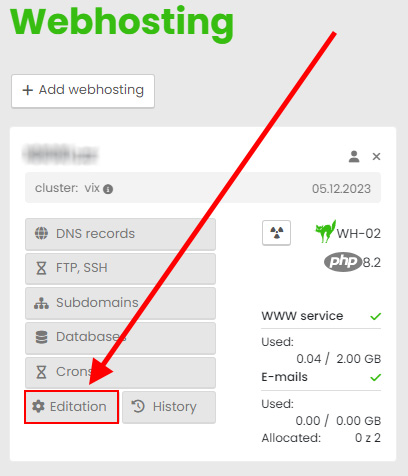
Login to the hosting services admin.hukot.net and go to edit your hosting service (applies to Webhosting, Wordpress Hosting, Multihosting and Wordpress Multisite).
Click on "Editation" button:
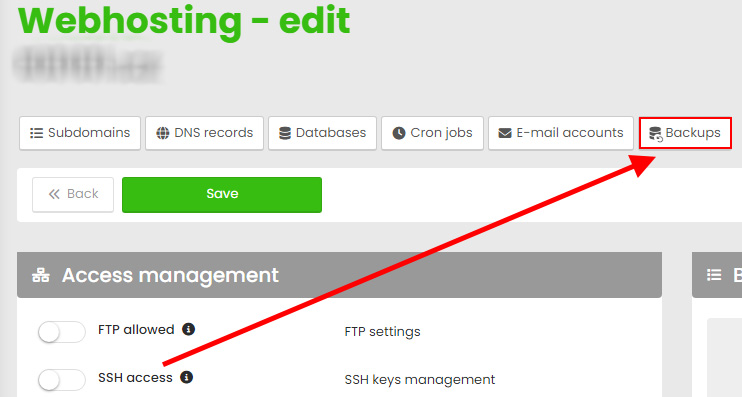
Go to the Backups section:
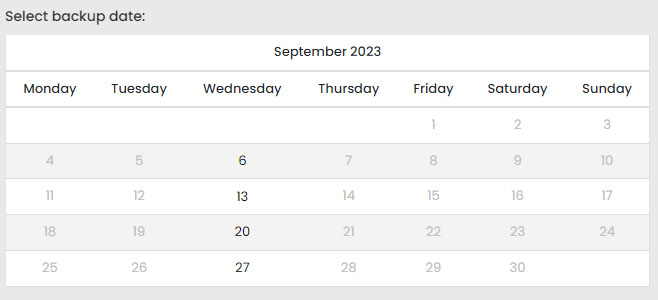
Here, select the highlighted date of the created backup (frequency according to the hosting plan), where you can then browse the contents of the backup and choose to either restore the entire site or individual directories/files, or mount the selected backup as a whole in the _backup directory in the web hosting space and copy the files as needed.
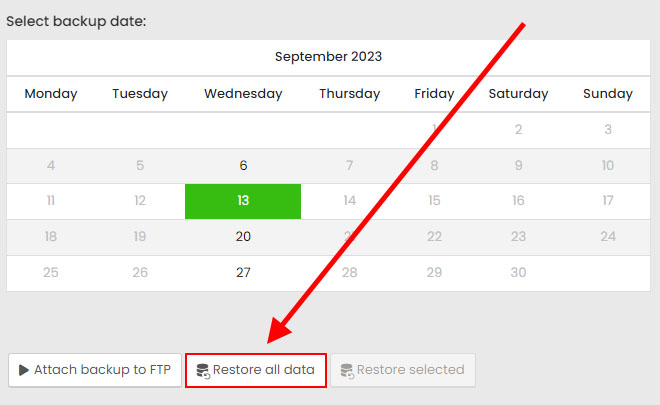
1) Restore web hosting from backup
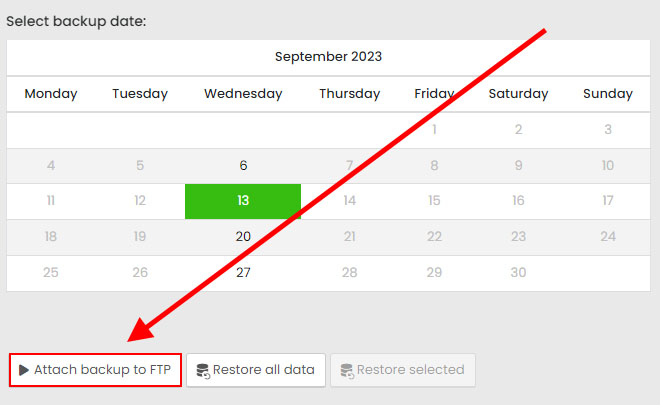
Select the date of the backup you created from the calendar and enter the "Restore All" option. You will receive an informational email when the restore is complete.
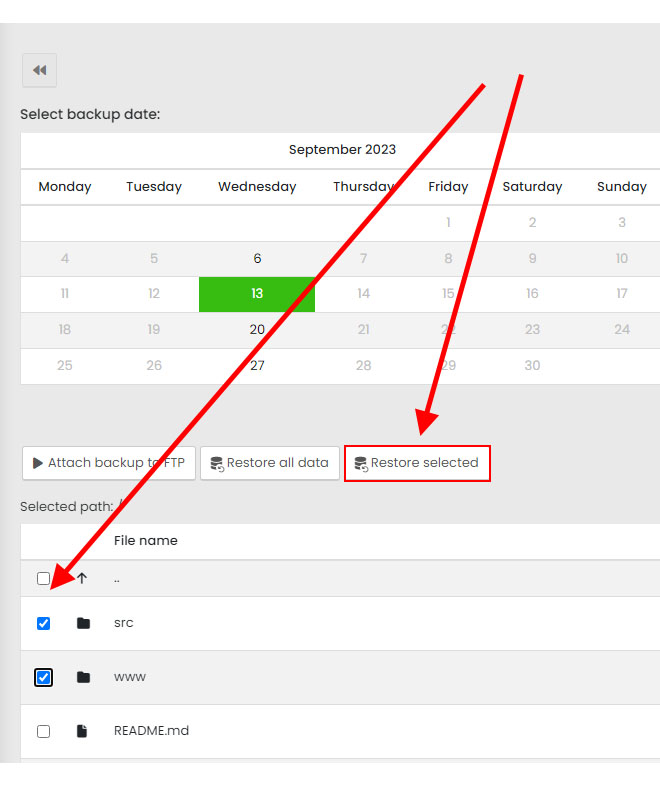
2) Restore selected files from backup
Choose the date of the created backup from the calendar, check the necessary files/folders from the directory structure and enter the option "Restore selected". You will receive an informational email when the restore is complete.
3) Connect the selected backup to FTP
Select the date of the backup from the calendar and enter the "Connect backup to FTP" option. The selected backup will be mounted as a whole to the _backup directory in the web hosting space within a few minutes and you can then copy the files as needed, e.g. via FTP.