Using Total Commander to connect to FTP
Do you have webhosting from hukot.net and like to use TotalCommander? Here's a quick tutorial how to setup FTP connection to your webhosting!
Log into hukot administration
We're going to log into admin.hukot.net.
Login credentials were sent to you by e-mail after registering hosting.
.png)
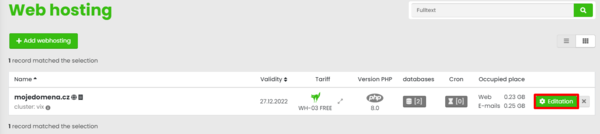
We can see navigation after logging in. Choose option Webhosting.

From the list of domains, select the one we will be connecting to and click on button "Editation".
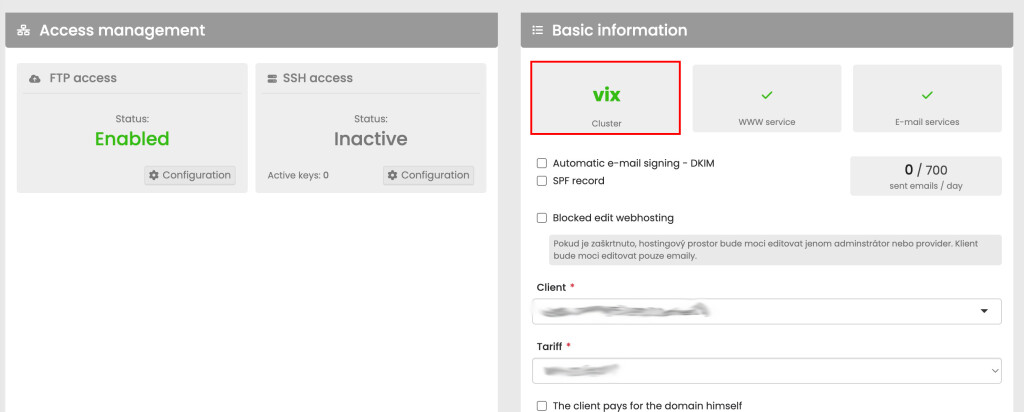
We're interested in this information:
Cluser - vix or eam - our connection details will later depend on this.
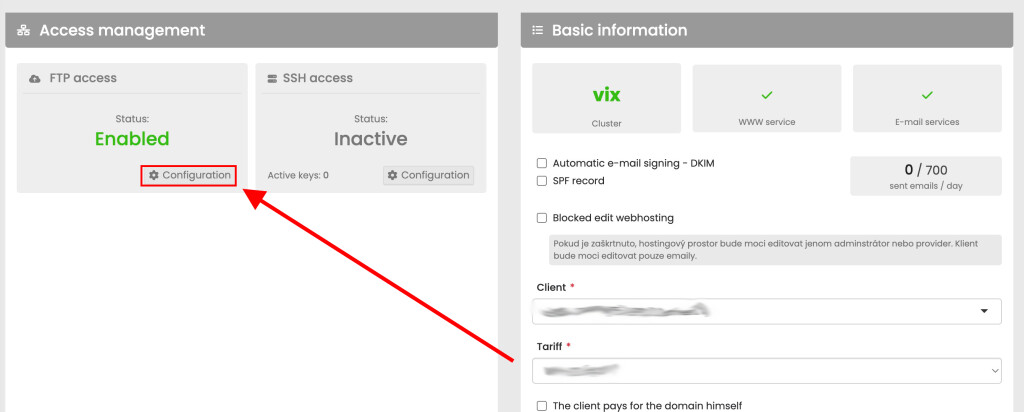
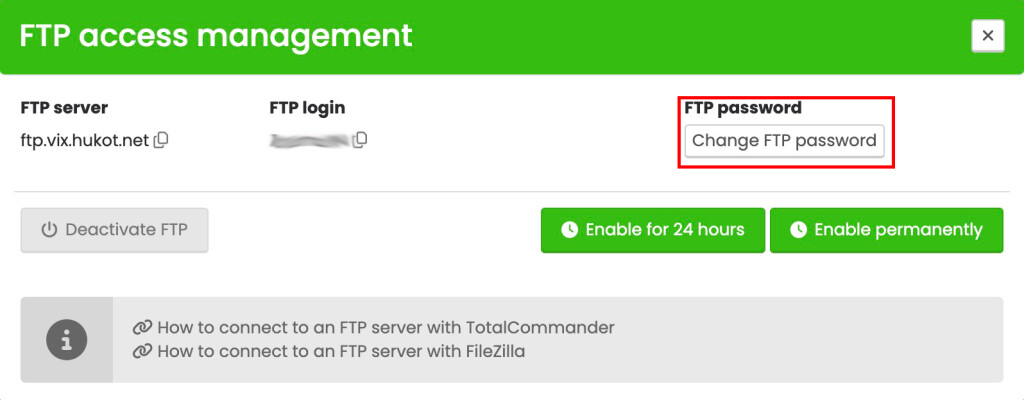
You can also enter a new password or generate a random one. After changing password, save changes by enabling FTP access.
Open Total Commander
We're going to open Total Commander. Choose option Net > FTP Connect.

Create new FTP Connection
We're going to create new connection through option New connection...

We're going to fill in the data according to the template.
Host name is ftp.eam.hukot.net or ftp.vix.hukot.net - based on the cluster you saw in administration panel;
User name is name of your domain;
Password is the password you entered or generated;
Check option SSL/TLS;

Connecting to FTP
We're going to select our connection and click on button Connect.

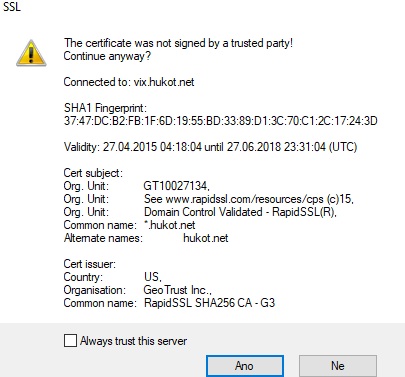
Accept and continue.
Note: You can check "Always trust this server" to hide the warning.
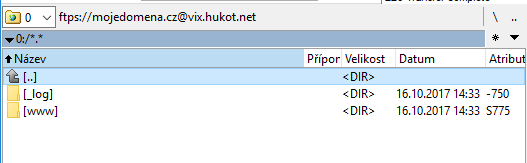
We have successfully connected to FTP server and we can begin uploading our files now.
All the content you want to have public, upload inside folder www.
We're done :)