Object Storage - Rsync
1. Password Generation
In the administration of hosting services at admin.hukot.net, navigate to Object Storage.
Select the desired Object Storage space and click on the "User List" button. Find the specific user or create a new one.
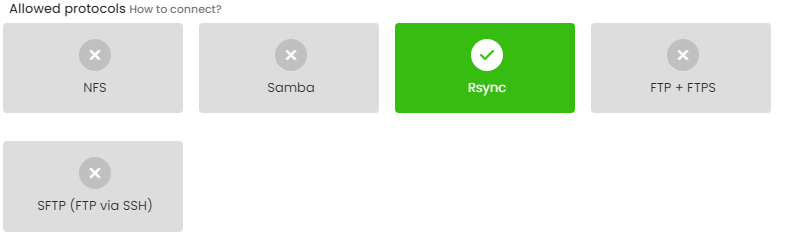
In the list of allowed protocols, enable Rsync.
Enter or have a password generated.
Enter the IP address for access.
Enter the IP addresses that will have access to the storage and click on "Save."
.jpg)
Note: If you are editing a user, you first need to click on the "Change Password" button.
2. Connection Using Rsync
Basic syntax of the rsync command:
rsync [OPTIONS] SOURCE DESTINATION
For example, to download all files currently located in your storage space, use:
rsync -arv --progress rsync://<user>@<host>/<path> ./
First directory path is requiret to be name of your space (login). It usually begins with storage_ a followed by number.
rsync -arv --progress rsync://<storage_1>@<storage1.hukot.net>/<storage_1> /home/<user>/backup
Explanation of parameters:
- rsync - command
- -arv
- -a - archive mode
- -r - recursion
- -v - verbose
- --progress - display a progress bar
- rsync://<user>@<host>/<path>
- rsync - protocol
- <user> - User's name
- <host> - Storage server, you can find this information in the user's profile.
- <path> - You need to enter the path specified for the user.
- ./ - Downloading content to the current directory
After executing the command, you will need to enter the generated password.
You can find the complete rsync manual here.