Object Storage - Samba
1. Password Generation
In the administration of hosting services, navigate to Object Storage.
Vybereme požadovaný Object Storage prostor a klikneme na tlačítko seznam uživatelů.
Najdeme si konkrétního uživatele, případně vytvoříme nového.
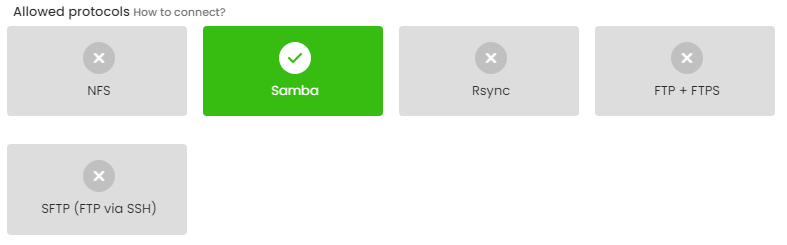
In the list of allowed protocols, enable Samba.
Enter, or have generated for you, a password.
Enter the IP addresses that will have access to the storage and click on save.
.jpg)
Note: If you are editing a user, you first need to click on the change password button.
2. Connection Using Samba
2.1 Windows
Open File Explorer and right-click on This PC. A menu will appear, where you should select the option Add a network location.
A wizard will appear. Click on the Next button. Select the option Choose a custom network location and proceed.
In the Network location or Internet address field, enter according to the following example:
\\<host>\<user>
Host is a storage server
User is the login name
Click Continue. Enter the location name and finish adding.
The first time we open it, it will ask us for a username and password.
2.2 Linux
For connecting to Samba on a Linux operating system, you can use the following commands: smbclient, smbmount and smbumount.
smbclient <host>/<user> <password>

smbmount "\\\\<host>\\<user>" -U rtg2t -c 'mount /<target> -u 500 -g 100'
Host is the storage server
User is the login name
Password is the generated password
Target is the target directory.