After ordering, you will receive a VPS with the Windows Server 2016 operating system. Among the basic settings of Windows Server 2016 is an active network connection via a so-called DHCP server, which configures the IP address automatically. For our purposes, we need to set the IP address manually. Therefore, in a short guide, we will show you how to do it.
1. Logging into Administration #
We log into the administration of hosting services admin.hukot.net.
2. Determining the IP Address #
After logging in, we see the navigation. We select the Virtual Servers option.
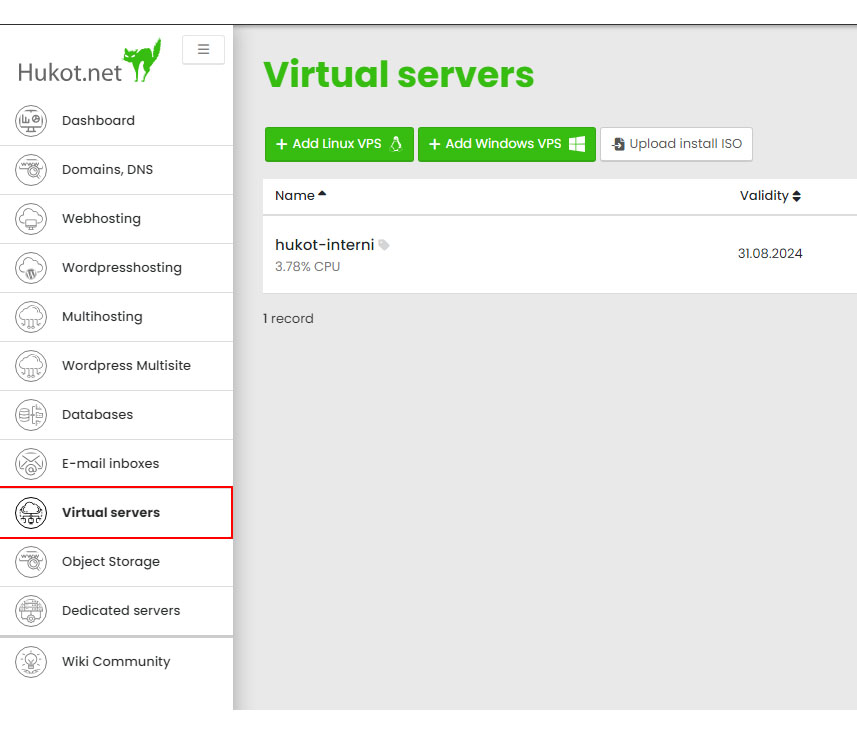
Here, we see an overview of available VPS. For a specific VPS, we click on the displayed IP address.
After clicking, a popup window with the complete IP address settings will appear.

We will use these details later.
3. VPS Configuration #
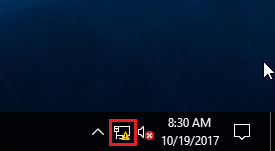
Now, we go to VPS. Right-click on the Network icon.
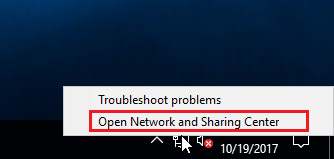
Select the option Open Network and Sharing Center.
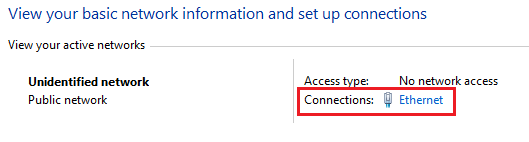
Select Connections: Ethernet Network.
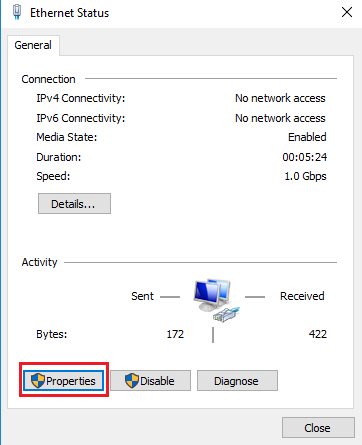
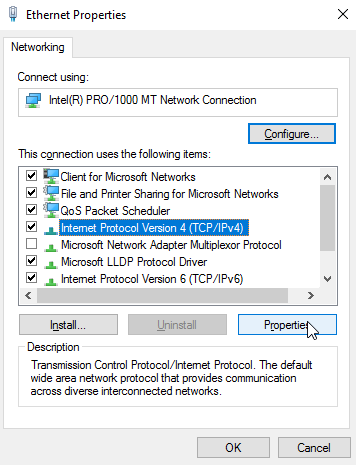
Choose Properties.
Select Internet Protocol Version 4 (TCP/IPv4) > Properties.
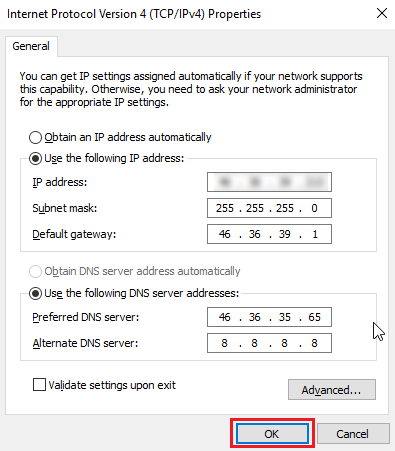
Select the second option Use the following IP address.
Fill in according to the template, your details we found in step 2. Where
- IP address is IP
- Subnet mask is Mask
- Default gateway is Gateway
- Preferred DNS server is DNS1
- Alternate DNS server is DNS2
Confirm and close.
Done (^.^)