Are you using the email client Outlook 2013 or Outlook 2016 and would like to view emails from your email account?
In the top-left corner, click on File, then click on Info, and Add Account.
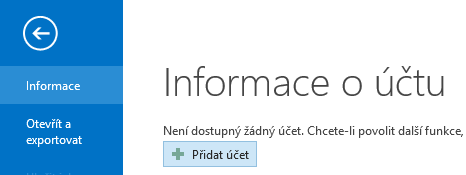
1. Adding an Account #
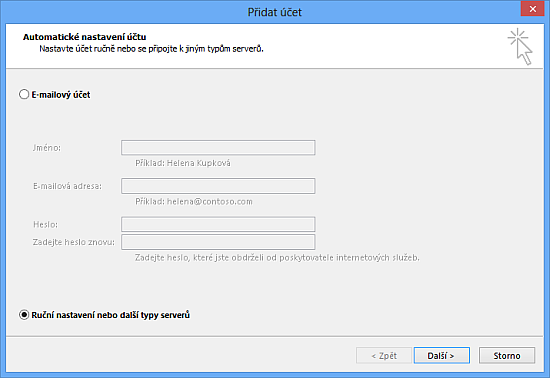
Check the option Manual setup or additional server types and proceed with the Next button.
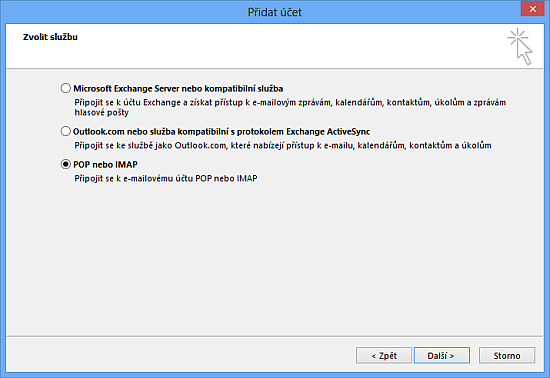
From the following options, select POP or IMAP.
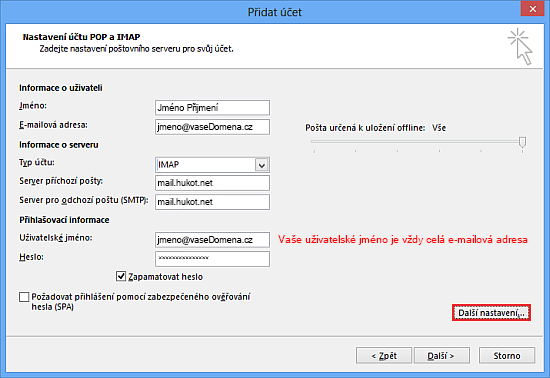
Fill in the details as per the template.
Choose the account type as IMAP.
The server for both incoming and outgoing mail is mail.hukot.net, and the user name is your full email address.
After filling in all the details, click on the More Settings button.
2. Security
On the Outgoing Server tab, check the option My outgoing server (SMTP) requires authentication.
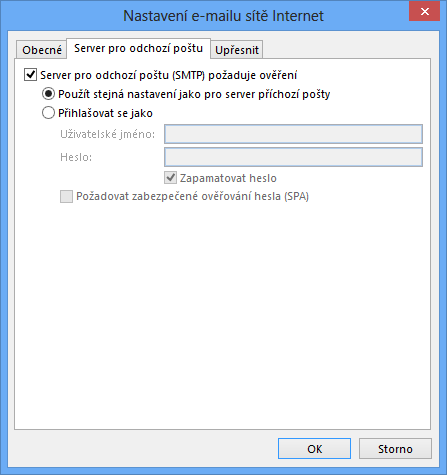
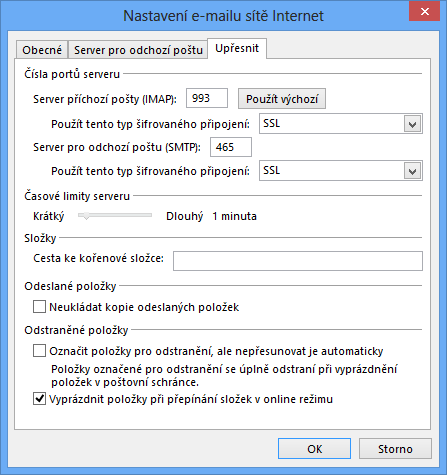
Then set the ports and encryption on the Advanced tab and click OK:
- Incoming server (IMAP): 993, encrypted connection SSL
- Outgoing server (SMTP): 465, encrypted connection SSL
If the test runs successfully, it means everything is in order. In case of any issues, you will need to double-check the details.

Confirm the account addition with the Finish button.

3. Folder Synchronization
In the top-left toolbar, click on Folders.

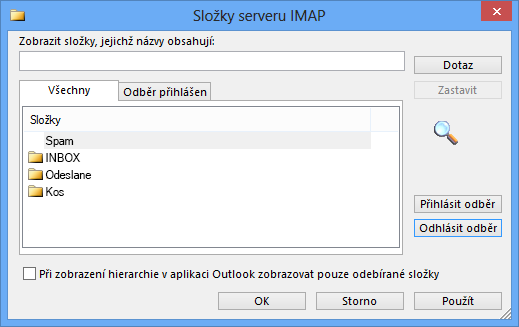
Select IMAP Folders.

Click on the Query button to display available folders.
For individual folders, you can choose whether to synchronize them with the server or not.
Confirm with the OK button.
The email client setup is complete.