How to connect to Remote Desktop - Windows server 2019
Remote access to get to your computer or VPS over the Internet.
Set up the PC you want to connect to so it allows remote connections:
Step 1. - Make sure you have Windows 10 Pro. To check, go to Start > Settings > System > About and look for Edition.
If you have the Windows Home edition, this method will not work for you. For an alternative remote desktop connection, see below.
Step 2. - When you're ready, select Start > Settings > System > Remote Desktop, and turn on Enable Remote Desktop.
Or search and open application: "Remote Desktop Settings".

Step 3. - enable "Allow remote connections to this computer".

CONNECTING
Step 4. - Open application "Remote Dektop Connection".

Step 5. - Enter IPv4 address of our VPS instead of the red highlight.
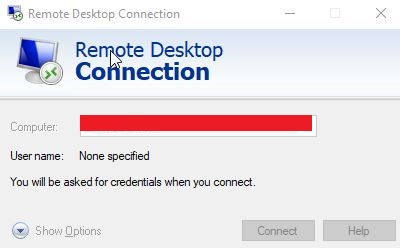
Step 6. - Enter login credentials for our VPS instead of the red highlight.

Step 7. - You should now be successfully connected to your server! Enjoy your remote access to your VPS!
Alternative remote desktop connection
If you can't use what Windows offers directly, we have other options. Below you will find a quick overview. For some of them, you will have the advantage of being cross-platform - so they will be used to connect to Windows from (for example) Linux or Apple.
- Teamviewer –www.teamviewer.com (Free trial)
- Chrome Remote Desktop (app pro Chrome, free)
- Hamachi (vpn.net) - www.vpn.net (Free trial)
- Radmin VPN - www.radmin-vpn.com/cz/ (Client for free, Server for a 30 day trial period)
The principle will always be the same, you must install the "server" part on the computer you want to access, it is the software that takes control of the computer.You will only need a client program on the computer from which you will access.