Remote access to get to your computer or VPS over the Internet.
Set up the PC you want to connect to so it allows remote connections:
Step 1. - Log in to the server as an administrator, for example through the Terminal of the VPS in the admin.hukot.net administration.
Step 2. - When you're ready, select Start > Settings > System > Remote Desktop, and turn on Enable Remote Desktop.
Or search and open application: "Remote Desktop Settings".

Step 3. - enable "Allow remote connections to this computer".

CONNECTING #
It may happen that even if in Windows 10 Remote Desktop is enabled, the incoming connection may be blocked by the Windows firewall (usually if the person is connected via the "Public network" - or is connected at home but has an incorrect network type).
Step 4. - Open application "Remote Desktop Connection" (mstsc).

Step 5. - Enter IPv4 address of our VPS instead of the red highlight.
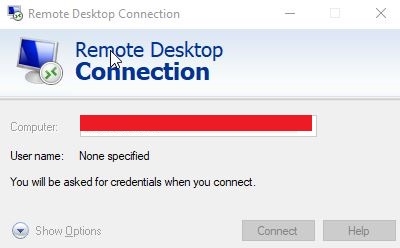
Step 6. - Enter login credentials for our VPS instead of the red highlight.

Step 7. - You should now be successfully connected to your server! Enjoy your remote access to your VPS!
Alternative remote desktop connection #
If you can't use what Windows offers directly, we have other options. Below you will find a quick overview. For some of them, you will have the advantage of being cross-platform - so they will be used to connect to Windows from (for example) Linux or Apple.
- Teamviewer –www.teamviewer.com (Free trial)
- Chrome Remote Desktop (app pro Chrome, free)
- Hamachi (vpn.net) - www.vpn.net (Free trial; a VPN through which you then connect with regular Remote Desktop)
- Radmin VPN - www.radmin-vpn.com/cz/ (free; a VPN through which you then connect with regular Remote Desktop)
The principle will always be the same, you must install the "server" part on the computer you want to access, it is the software that takes control of the computer.You will only need a client program on the computer from which you will access.