Setting the IP address - Windows 10
After ordering, you get a VPS with the Windows 10 operating system. The basic settings of Windows 10 include an active network connection via a so-called DHCP server, which sets the IP address automatically.
For our needs, we must set the IP address manually. Therefore, we will show you how to do it in a short guide.
1. Get the IP address
Log into admin.hukot.net administration.
In sidebar choose Virtual servers.
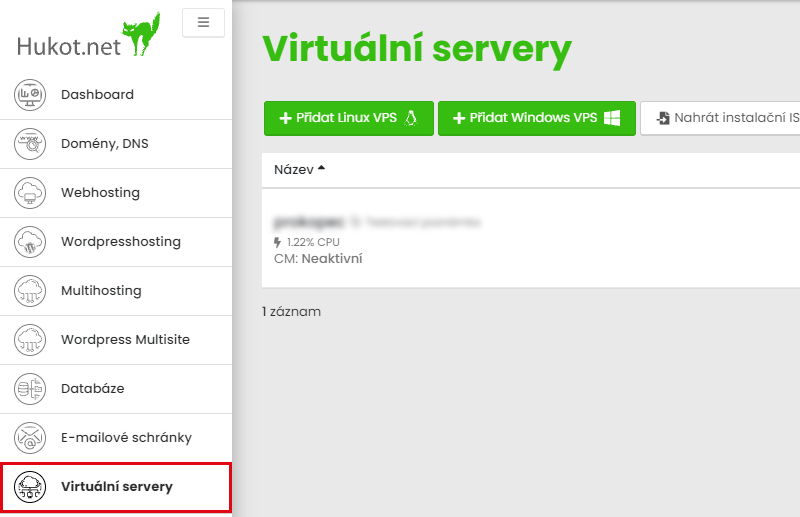
From the list of VPS, choose server you want to set up the IP address for.
Left click on IP address. That will bring up popup window with all necessary information about IP address which we will use later.

3. Set a IP address
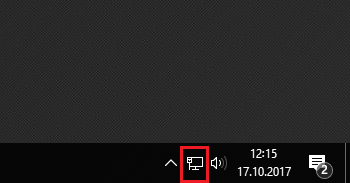
Open terminal and with right click on Internet.
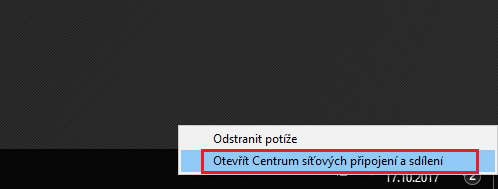
In context menu select Network and Sharing center.
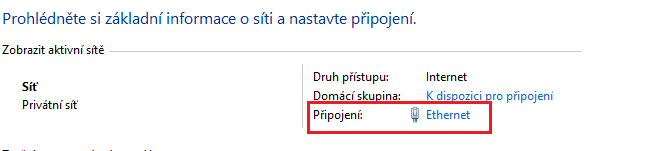
Select Connections: Ethernet.
Select properties.
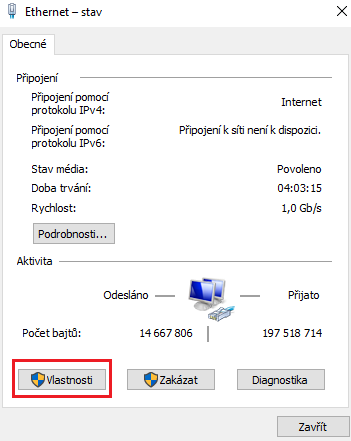
Choose Internet Protocol Version 4 (TCP/IPv4) and properties.
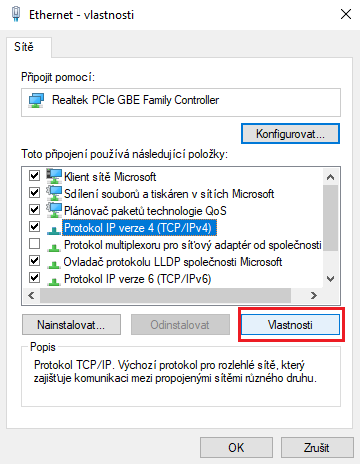
Select Use the Following IP address

Complete the IP address, Subnet mask, Default gateway and DNS fields by using the values in step 1.
- IP address is IP
- Subnet mask is Mask
- Default gateway is Gateway
- Server DNS1 is DNS1
- Server DNS2 is DNS2
Confirm and close the window.