WordPress multisite
WordPress multisite allows you to manage multiple websites from one place. This is useful, for example, for creating multiple language versions of a website or for sharing content and features between multiple websites.
Before you get started, we recommend that you make a backup of your site in case your site is damaged or irretrievably destroyed when you install multisite.
1. Enabling multihosting
Connect via FTP to your site files.
Open wp-config.php and paste define('WP_ALLOW_MULTISITE', true); above the line /* That's all, stop editing! Happy publishing. */
    /* Add any custom values between this line and the "stop editing" line. */
    define('WP_ALLOW_MULTISITE', true);
    /* That's all, stop editing! Happy publishing. */
2. Deactivating plugins
To activate multisite you need to deactivate all plugins on the site. Once activated, you can reactivate them all.
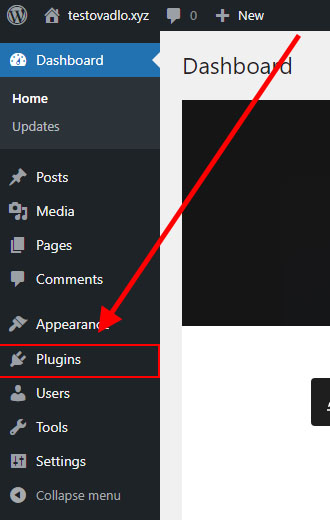
Go to the administrative environment of your WordPress site and switch to the "Plugins" tab.
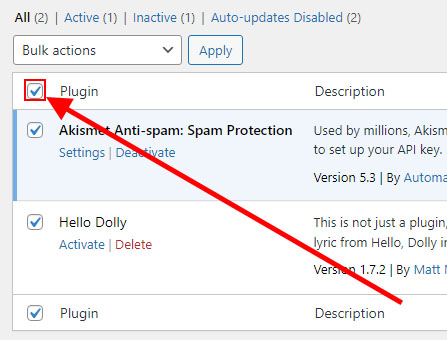
Select all plugins.
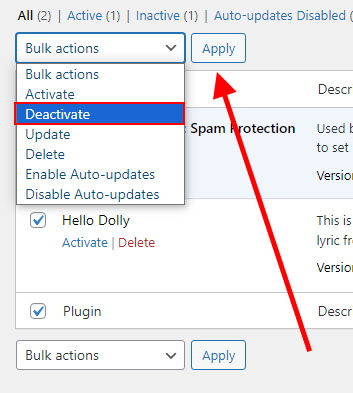
Select "Deactivate" and click "Apply."
3. Create a network of sites
Switch to the "Tools" settings under the "Site Network" section.
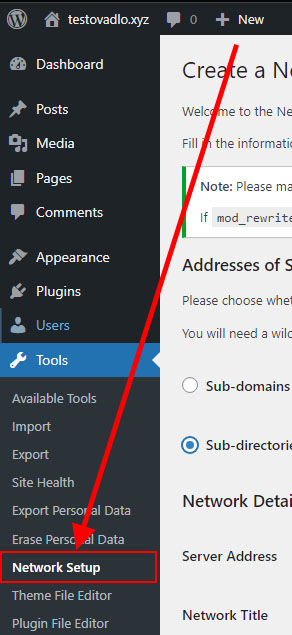
Select the multihosting type:
- Subdomains- like
site1.yourdomain.czandsite2.yourdomain.cz - Subdirectories - kike
yourdomain.cz/site1andyourdomain.cz/site2
Note: Subdomains can be set only for newly created sites.
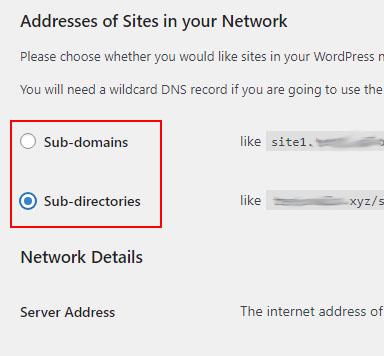
Fill in "Site Network Name."

Fill in "Site Network Administrator Email" and click "Install."

4. Edit wp-config.php and .htaccess
WordPress has generated the settings you need to copy into wp-config.php and .htaccess for the site to work properly.
Copy the wp-config.php settings.
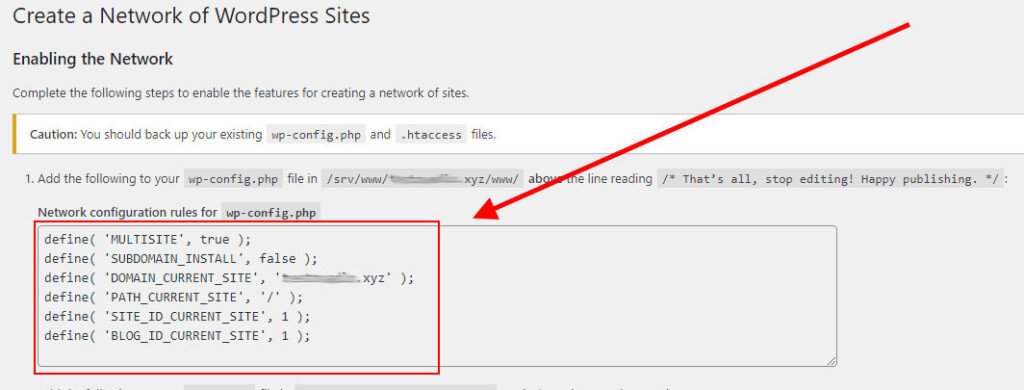
Open wp-config.php and paste the settings above the line that says : "/* That's all, stop editing! Happy publishing. */."
/* Add any custom values between this line and the "stop editing" line. */
define('WP_ALLOW_MULTISITE', true);
define( 'MULTISITE', true );
define( 'SUBDOMAIN_INSTALL', false );
define( 'DOMAIN_CURRENT_SITE', 'localhost' );
define( 'PATH_CURRENT_SITE', '/' );
define( 'SITE_ID_CURRENT_SITE', 1 );
define( 'BLOG_ID_CURRENT_SITE', 1 );
/* That's all, stop editing! Happy publishing. */
Go back to the WordPress administration environment and copy the settings for .htaccess.
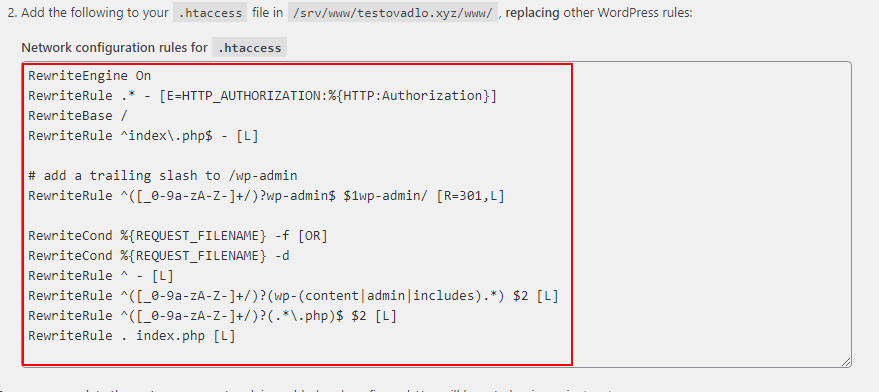
Open .htaccess and replace the other WordPress rules.
    # BEGIN WordPress
    # The directives (lines) between "BEGIN WordPress" and "END WordPress" are
    # dynamically generated, and should only be modified via WordPress filters.
    # Any changes to the directives between these markers will be overwritten.
    RewriteEngine On
    RewriteRule .* - [E=HTTP_AUTHORIZATION:%{HTTP:Authorization}]
    RewriteBase /
    RewriteRule ^index\.php$ - [L]

    # add a trailing slash to /wp-admin
    RewriteRule ^([_0-9a-zA-Z-]+/)?wp-admin$ $1wp-admin/ [R=301,L]

    RewriteCond %{REQUEST_FILENAME} -f [OR]
    RewriteCond %{REQUEST_FILENAME} -d
    RewriteRule ^ - [L]
    RewriteRule ^([_0-9a-zA-Z-]+/)?(wp-(content|admin|includes).*) $2 [L]
    RewriteRule ^([_0-9a-zA-Z-]+/)?(.*\.php)$ $2 [L]
    RewriteRule . index.php [L]

    # END WordPress
5. Creating a new site
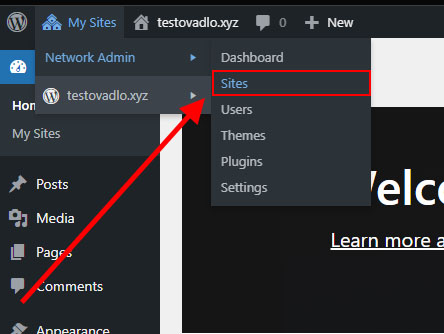
Open the "My Sites" tab and select "Sites."
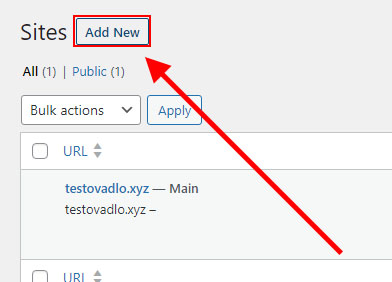
Click "Add New."
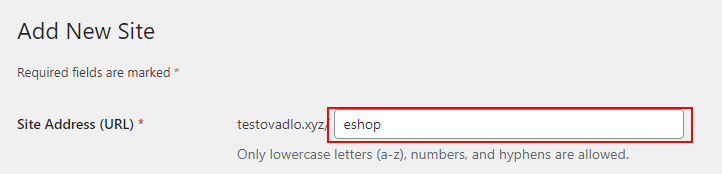
a) Subdirectories
Enter the url of the home page.
Enter the name of the site.

Select the language of the site.

Enter the admin email and click on "Create New Site."

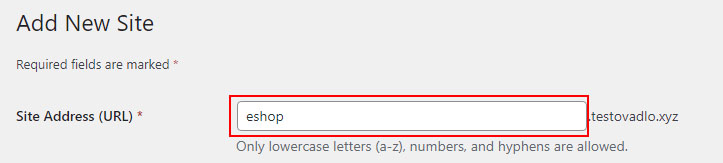
b) Subdomains
Enter the address of the subdomain.
Enter the title of the site.

Select the language of the site.

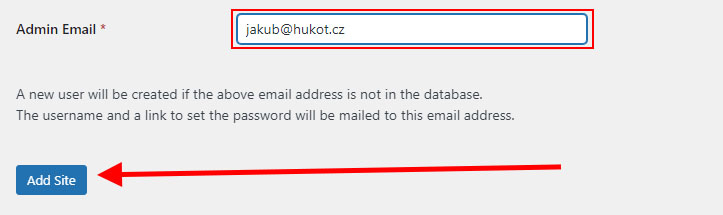
Enter the administrator's email and click "Add Site."
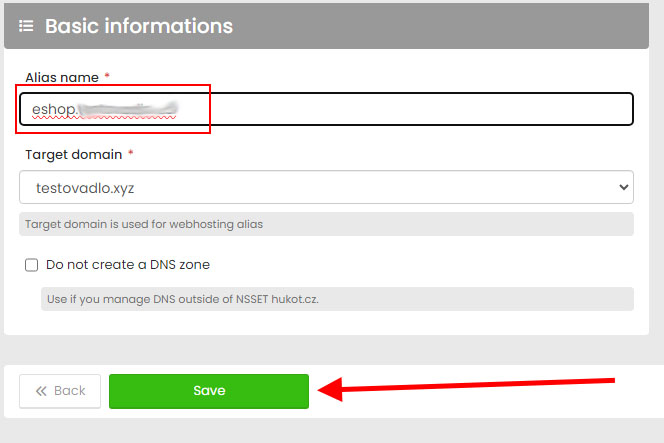
We still need to set up your domain's DNS. Go to admin.hukot.net and go to domain settings, DNS.
Click "Add Alias."
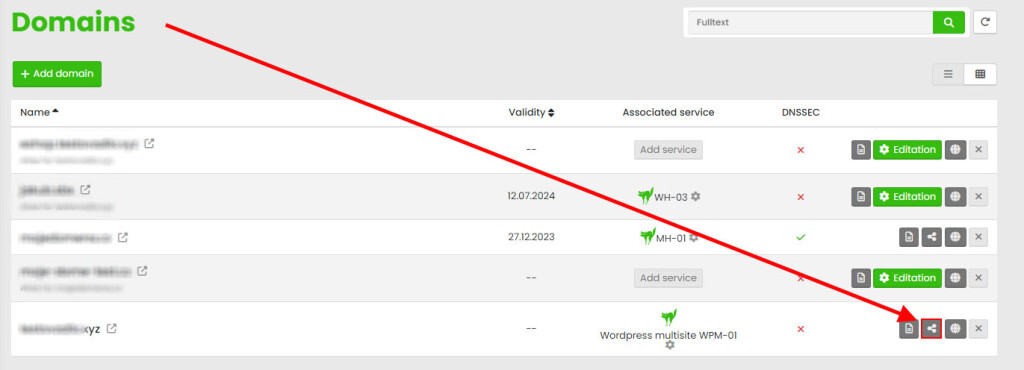
Enter the full address of the new site and click "Save." (It may take 5-10 minutes to create.)
c) Domains
Even though you want to set up a site with a domain, you must first create a subdomain, which you then modify to your domain.
Enter the address of the subdomain.
Enter the title of the site.
Select the language of the site.
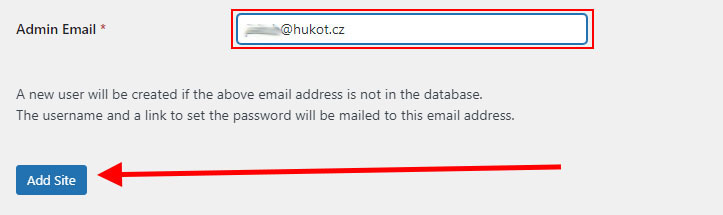
Enter the administrator's email and click "Add Site."
Go to the site overview and click "Edit."
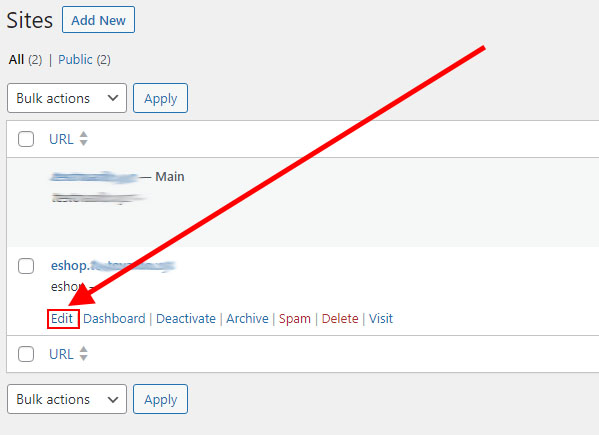
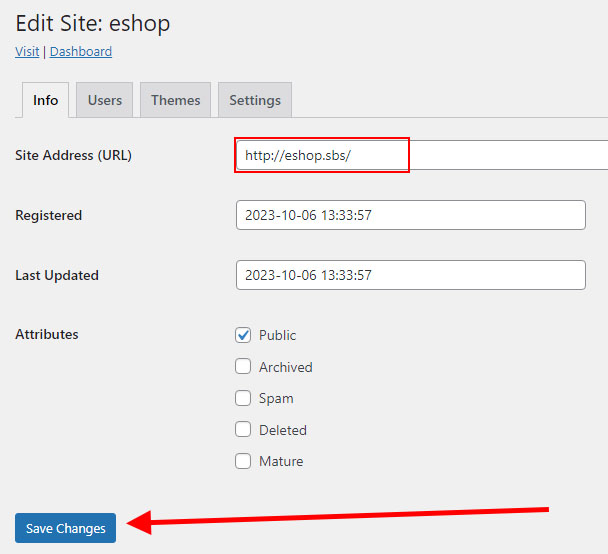
Enter the full address of your alias domain (e.g., https://vasedomena.cz/) in the "Site Home Page" field and click "Save Changes."
How do I set up a domain alias?
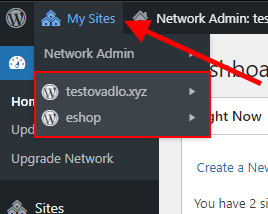
Your new site will appear in the top left bar under the "My Sites" tab, where you can toggle between just the sites.