Do you use an iPhone and want to sign in to your domain's email account in the Apple Mail app?
Here is a quick guide:
1. Add an account #
Open Settings › Apps › Mail › Mail Accounts › Add Account, enter your email address and tap Next.
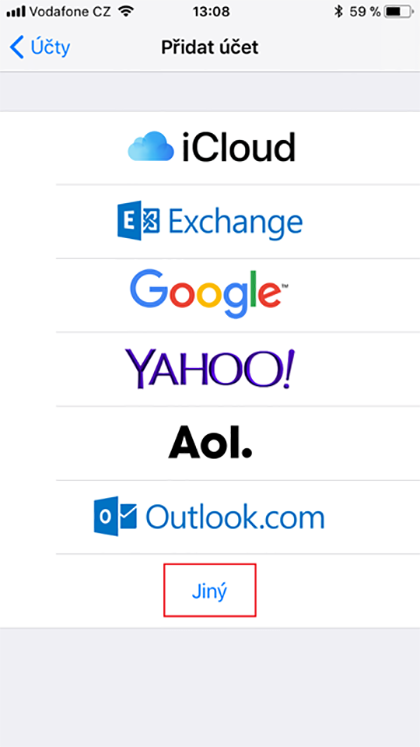
Choose Add Other Account. On older iOS versions the path is Settings › Mail › Accounts › Add Account › Other.
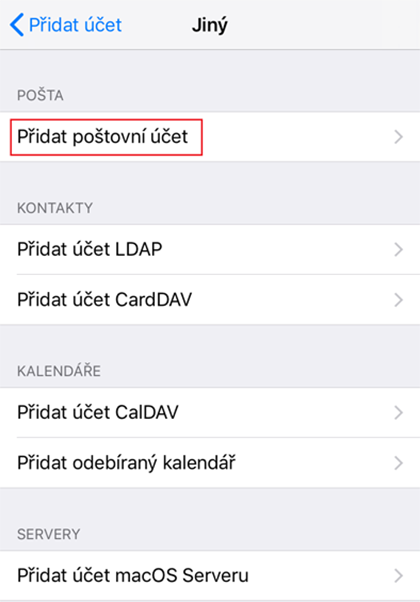
Choose Mail Account (on older iOS versions Add Mail Account).
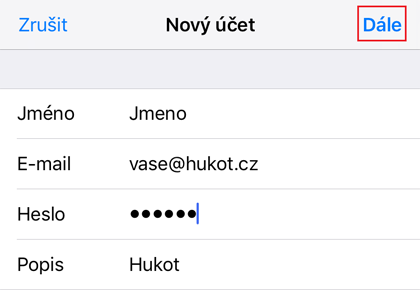
Fill in the details as shown in the example - the Email field is always the full email address
Tap Next.
Fill in the remaining details and choose IMAP as the account type.
For both the incoming and outgoing server:
Host Name: mail.hukot.net
User Name: full email address
Password: the password to your mailbox
Tap Next.

Encrypted connection #
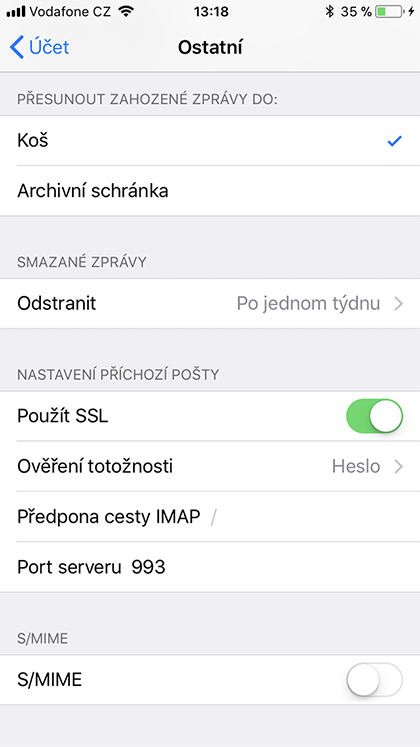
To turn on an encrypted connection, open the Advanced tab and enable Use SSL.
Done.