This guide shows how to migrate a WordPress website to new hosting or another domain with the All-in-One WP Migration plugin, a simple and effective tool for migrating WP.
Before any migration, we recommend backing up your existing website to avoid losing data. You can use a dedicated backup plugin or back up the data manually.
EXPORT #
-
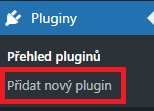
Log in to the administration of your source WordPress website and, in the left panel, choose Plugins and Add New Plugin.
-
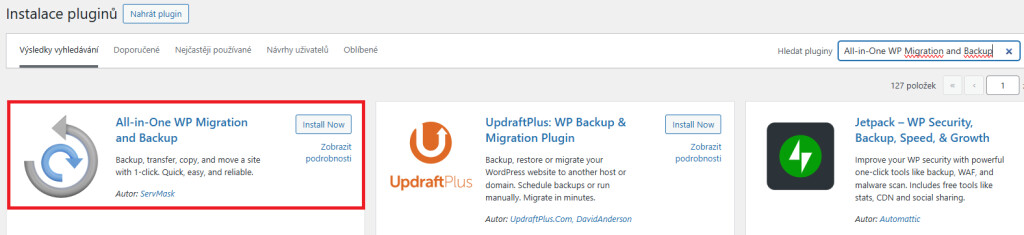
Search for and install the All-in-One WP Migration plugin, then activate it.
-
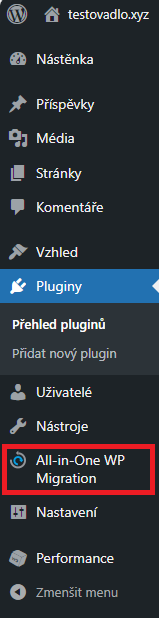
After activation, a new All-in-One WP Migration item appears in the left WordPress panel.
-
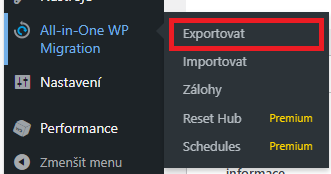
Then choose Export.
-
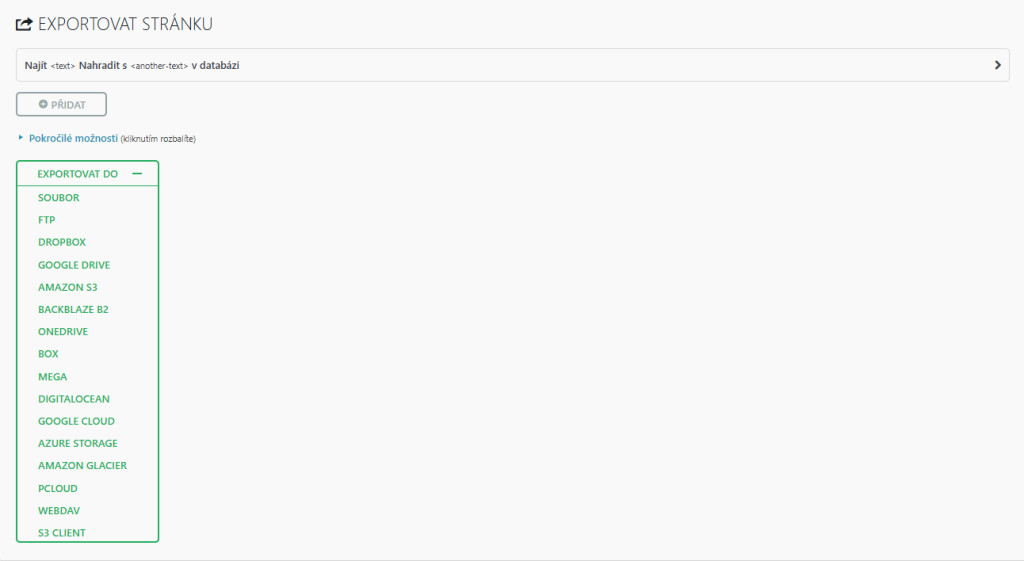
Choose "FILE" from the menu - the option available and working in the free version of the plugin.
-
When the export has been prepared, confirm the download with the "Download" button.
IMPORT #
-
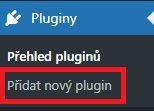
Open the WordPress administration on the new domain, log in and choose Plugins and Add New Plugin.
-
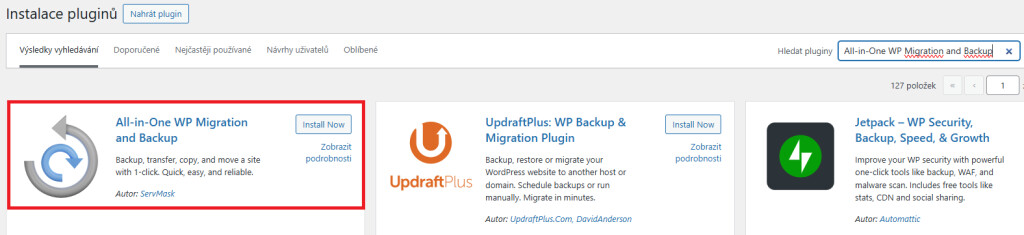
Search for and install the All-in-One WP Migration plugin and activate it
-
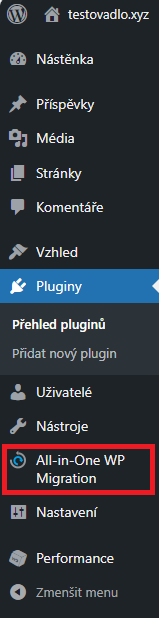
After activation, a new All-in-One WP Migration item appears in the left WordPress panel.
-
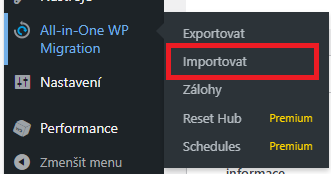
Then choose Import.
-
Choose the method you will use to upload the backup file and upload it. The plugin shows the largest allowed file size on the Import screen; it is the PHP upload limit of the hosting (
upload_max_filesize,post_max_size). A larger backup can be uploaded only after this limit is raised.
-
When the import has finished, log out of the website and log in again with the login details of the migrated website.
-
Fixing permalinks - after the migration, especially if you use permalinks (pretty URLs), these URLs may not be updated and the website may show an error when you open posts. You can fix this by simply saving the permalink settings again. How? In the WordPress administration, go to Settings -> Permalinks, check the settings and save them. This writes the current values to the .htaccess file.
If your .htaccess file contains custom redirects, back it up before making this change.
After migrating your website, check that everything works correctly. Make sure all links and media files load properly.